File Management, File Attributes & Permissions
File Management
In Linux file management, we will learn about
- Creating files
- Copying files
- Moving files
- Removing files
- Display the contents of files
File Management: Creating Files
| Creating Files |
| Always remember that in Unix/Linux everything is treated as a file.
There are 7 types of file, that says the directory is also treated as a file. Command to create a regular file in Linux touch filename Command to create a directory in Linux mkdir filename Create a file sample.h under usr directory touch /usr/sample.h Create a directory cse under usr directory mkdir /usr/cse
|
| Create a file with the cat command |
| Type the command
cat > name_of_file Now type in your text. Press the <Return> key to start a new line. When you have finished typing in your text, enter Ctrl-d (Press and hold down the Ctrl key and type a “d”). This stops the cat command and returns you to the system prompt. |
| Creating Files |
| Take care while creating a file using cat Do not use the name of a file that already exists. If you do, it will be overwritten by the new copy.To avoid this:Set the shell variable “noclobber” so that existing files cannot be overwritten (or clobbered).set noclobber |
File Management: Copying Files
To copy a file use cp command :
cp source_path_filename  destination_path_filename

cp /usr/include/stdio.h  ~/myheader.h
If you are already in the directory where source file resides cp stdio.h ~/myheader.h cp ./stdio.h ~/myheader.h
Note: “~” refers to your home directory |
To copy the contents of a directory, use the recursive option (-r). Because a directory can itself contain directories with subdirectories.
cp –r source_directory  destination_directory

cp –r /usr/include/  ~
If you are already in the directory where source file resides cp -r ./ ~
|
File Management: Moving Files
| Moving Files |
Move the file
mv source_filename destination_filename mv /usr/sample.txt /usr/sam.txt
|
| Moving Files |
rm –i filename rm –f filename –f option deletes the file without asking (non-interactive) -i option ask confirmation to proceed (interactive)
rm dir_name rmdir dir_name removes empty directory (can only delete empty directory) rm –rf dir_name This will delete the directory including all files and sub-directories (non-interactive) |
File Management: Display the contents of a file
| Display the contents of a file |
| To display the content of a file on the terminal itself
cat path_of_filename To display the contents of a file with the line number in front of each line, use option -n. cat -n path_of_filename Displaying file contents in reverse. tac path_of_filename |
| Other use of cat |
| Copy file contents
cat source_program_file > backup_program_file Concatenate Contents of Multiple Files cat program1 program2 > all_program |
Commands covered in File management
-
-
- touch
- mkdir
- cp
- mv
- rm
- rmdir
- cat
-
File attributes and Permissions
In Linux File attributes and Permissions, we will learn about
- ls –l: Listing File Attributes
- The –d option: Listing directory attributes
- File ownership
- File permissions
- chmod: Changing File Permissions
- Directory Permissions
- Changing File ownership: chown & chgrp
File attributes and Permissions: Listing File attributes ( ls –l )
Sample output of ls –l
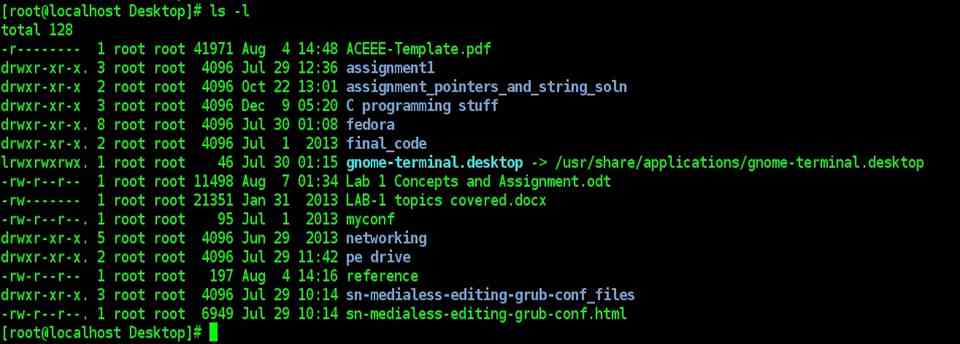
| 1st COLUMN | File Type and Permissions |
| 2nd COLUMN | No. of Links |
| 3rd COLUMN | Name of Owner |
| 4th COLUMN | Group Ownership (Name) |
| 5th COLUMN | File Size |
| 6th COLUMN | Last Modification time |
| 7th COLUMN | Filename |
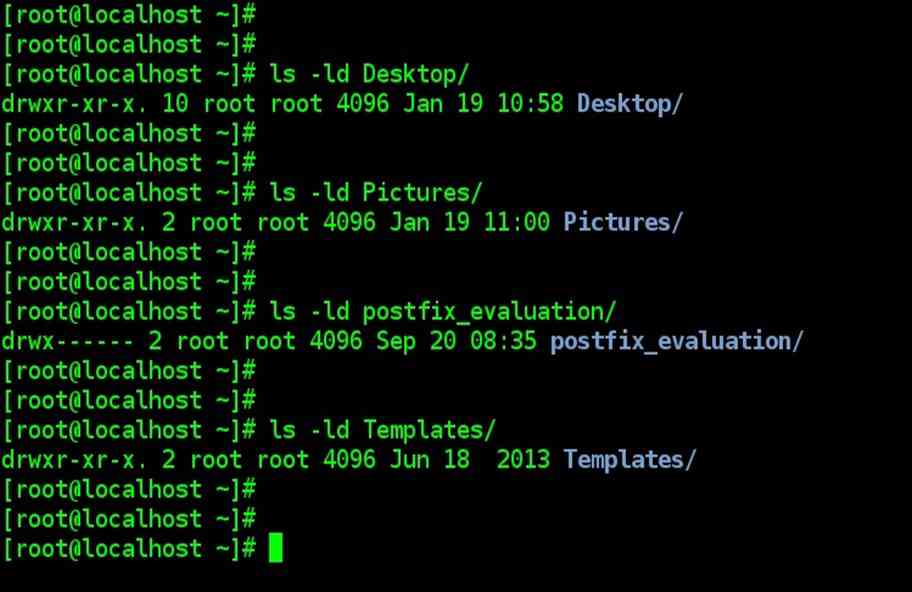
File attributes and Permissions: Listing Directory attributes ls –ld
Sample output of ls –ld dir_name
File attributes and Permissions: File ownership
| File ownership
|
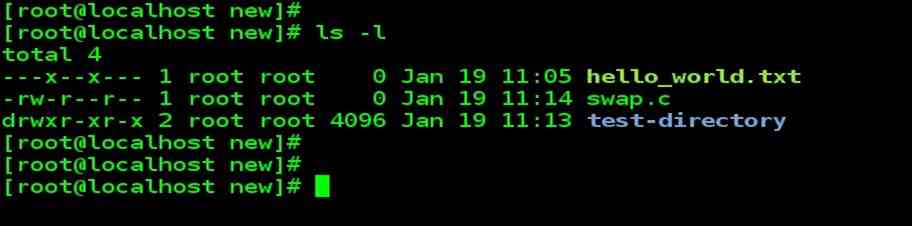
Referring to the above output of ls –l command we can see
When the system administrator creates a user account, he has to assign these parameters to the user.
“/etc/passwd” file maintains
“/etc/group” file maintains
|
File attributes and Permissions: File Permissions
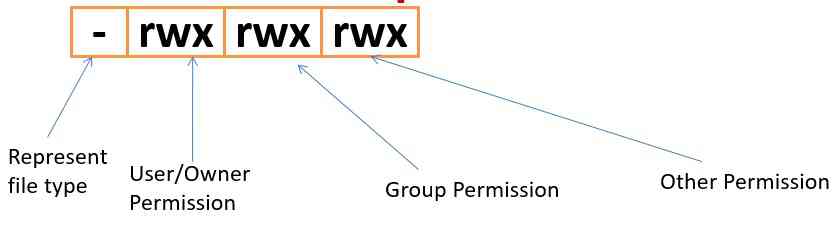
User Permission refers to the owner of the file.
Group Permission refers to common users of file.
Other Permission refers to the rest of the world.
| File attributes and Permissions: File permissions |
File
Directory
|
| File attributes and Permissions: File permissions | ||
| The difference in access permissions for files and folders | ||
| Access type | File | Folder |
| Read | If the file contents can be read | If the directory listing can be obtained. |
| Write | If user or process can write to the file (change its contents) | If the user or process can change directory contents somehow: create new or delete existing files in the directory or rename files. |
| Execute | If the file can be executed | If the user or process can access the directory, that is, go to it (make it be the current working directory). |
| File attributes and Permissions: File permissions | |
| Examples | |
| –rwxr-xr-x | File, owner has read, write, execute permissions, group: only read and execute permissions, others: only read and execute permissions. |
| dr-x-—– | Directory, owner has read and execute access, group and others have no access |
| File attributes and Permissions: chmod (changing File permission) |
The command can be used in two ways
|
| Relative Permission (Symbolic code)
|
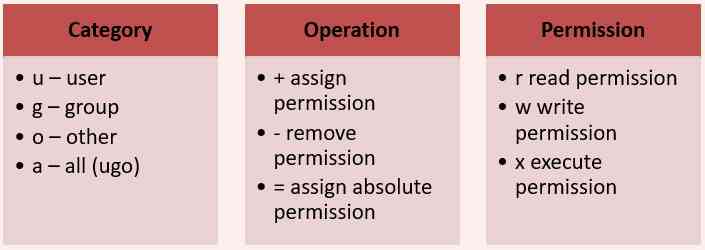
| File attributes and Permissions: chmod Example ( Relative Permission) |
| chmod category operation permission filename
|

| File attributes and Permissions: chmod Octal Permission codes | ||
Absolute Permission (Octal code)
|
||
| Octal Permission Basic codes ( read , write and execute) | ||
| Read Permission | Write Permission | Execute Permission |
| 4 (Binary 100) | 2 (Binary 010) | 1 (Binary 001) |
| File attributes and Permissions: chmod Octal Permission codes | |||
| Octal digit | Text equivalent | Binary value | Meaning |
| 0 | — | 000 | All types of access are denied |
| 1 | –x | 001 | Execute access is allowed only |
| 2 | -w- | 010 | Write access is allowed only |
| 3 | –wx | 011 | Write and execute access are allowed |
| 4 | r– | 100 | Read access is allowed only |
| 5 | r-x | 101 | Read and execute access are allowed |
| 6 | rw– | 110 | Read and write access are allowed |
| 7 | rwx | 111 | Everything is allowed |
| File attributes and Permissions: chmod Examples | |
| Example:
chmod 644 any_File_name |
owner: read and write permissions, group: only read permissions, others: only read permissions. |
| Example:
chmod 755 any_Dir_name |
owner: read, write and execute permissions, group: read and execute permissions, others: read and execute permissions. |
| Using chmod Recursively : It’s possible to make chmod descends a directory hierarchy and applies the expression to every file and subdirectory it finds. This is done with –R recursive option. | |
| chmod –R 755 . | “.” is shortcut for current directory. Works on hidden file too. |
| chmod –R a+x * | “*” denotes a wildcard to include everything. This expression leaves out hidden file due to relative permission expression. |
| There are cases when you may come across four non-zero digits, in this case the first meaningful (non-zero) digit combines the following bits (in this order, high to low): SUID, SGID, sticky bit. We will study them later. Ex: chmod 4775 filename | |
| File attributes and Permissions: chmod Example ( absolute Permission) |
chmod octal-permission-code filename

|
| File attributes and Permissions: chown and chgrp |
| chown command is used to change the owner and group of a file.
chgrp command is used to change the owner and group of a file. Changing ownership requires super user permission, so first, switch to su or root account. Usage : chown option owner [:group] file(s) It requires the owner name or (UID) & group name or (GID) for group. chgrp option group file(s) |
| File attributes and Permissions: chown and chgrp examples | |
| chown user1 myfile | user1 the new owner of myfile |
| chown command can also be used to change the group. | |
| chown akash:CSE myfile | akash is the new owner & CSE is the new group |
| chown :CSE myfile | CSE is the new group |
| chgrp ECE myfile | ECE is the new group |