SHELL BUILDING BLOCKS
Components of Shell Building Blocks
| Shell Building Blocks |
| • Shell syntax
• Shell commands • Shell functions • Shell parameters • Shell expansions • Redirections • Executing commands • Shell scripts |
| What we are going to discuss:
Shell syntax Shell functions Shell expansions Shell scripts The rest topics are already discussed. We will discuss Shell Function in Shell scripting
|
Shell Syntax
| Shell Syntax |
| If an input is not commented, the shell reads it and divides it into words and operators, employing quoting rules to define the meaning of each character of input. Then these words and operators are translated into commands and other constructs, which return an exit status available for inspection or processing. The above scheme is referred to as fork-exec. |
| fork-exec is only applied if the shell has analyzed input in the following way: |
| •The shell reads its input from a file, from a string or from the user’s terminal.
•Input is broken up into words and operators, obeying the quoting rules (already discussed). •These tokens are separated by metacharacters. Alias expansion is performed. •The shell parses (analyzes and substitutes) the tokens into simple and compound commands. •Bash performs various shell expansions, breaking the expanded tokens into lists of filenames and commands and arguments. •Redirection is performed if necessary, redirection operators and their operands are removed from the argument list. •Commands are executed. •Optionally the shell waits for the command to complete and collects its exit status. |
Shell Expansion
| Shell Expansion |
| Shell expansion is performed after each command line has been split into tokens. These are the expansions performed:
• Brace expansion • Tilde expansion • Parameter and variable expansion • Command substitution • Arithmetic expansion • Word splitting • Filename expansion |
Brace expansion
| Brace expansion |
| Brace expansion is a mechanism by which arbitrary strings may be generated.
Patterns to be brace expanded take the form of an optional PREAMBLE, followed by a series of comma-separated strings between a pair of braces, followed by an optional POSTSCRIPT. The preamble is prefixed to each string contained within the braces, and the postscript is then appended to each resulting string, expanding left to right. Brace expansions may be nested. The results of each expanded string are not sorted; left to right order is preserved: |
| Example |
| echo sp{el,il,al}l |
| Output |
| spell spill spall |
| Brace expansion is performed before any other expansions, and any characters special to other expansions are preserved in the result. It is strictly textual.
Bash does not apply any syntactic interpretation to the context of the expansion or the text between the braces. To avoid conflicts with parameter expansion, the string “${“ is not considered eligible for brace expansion. |
Tilde Expansion
| Tilde Expansion |
| If a word begins with an unquoted tilde character (“~”), all of the characters up to the first unquoted slash (or all characters, if there is no unquoted slash) are considered a tilde-prefix.
If none of the characters in the tilde-prefix are quoted, the characters in the tilde-prefix following the tilde are treated as a possible login name. If this login name is the null string, the tilde is replaced with the value of the HOME shell variable. If HOME is unset, the home directory of the user executing the shell is substituted instead. Otherwise, the tilde-prefix is replaced with the home directory associated with the specified login name. If the tilde-prefix is “~+”, the value of the shell variable PWD replaces the tilde-prefix. If the tilde-prefix is “~-“, the value of the shell variable OLDPWD, if it is set, is substituted. |
| Example |
| export PATH=”$PATH:~/testdir“ |
| Output |
| ~/testdir will be expanded to $HOME/testdir, so if $HOME is /var/home/franky, the directory /var/home/franky/testdir will be added to the content of the PATH variable. |
Parameter and variable expansion
| Parameter and variable expansion |
| The “$” character introduces parameter expansion, command substitution, or arithmetic expansion.
The parameter name or symbol to be expanded may be enclosed in braces, which are optional but serve to protect the variable to be expanded from characters immediately following it which could be interpreted as part of the name. When braces are used, the matching end brace is the first “}” not escaped by a backslash or within a quoted string. And not within an embedded arithmetic expansion, command substitution, or parameter expansion. The basic form of parameter expansion is “${PARAMETER}”. The value of “PARAMETER” is substituted. The braces are required when “PARAMETER” is a positional parameter with more than one digit, or when “PARAMETER” is followed by a character that is not to be interpreted as part of its name. |
| Example |
| var=CSE
echo ${var} |
| Output |
| CSE |
| Parameter and variable expansion |
| The following construct allows for the creation of the named variable if it does not yet exist:
${VAR:=value} |
| Example |
| echo ${var:=CSE} |
| Output |
| CSE |
Command Substitution
| Command Substitution |
| Command substitution allows the output of a command to replace the command itself.
Command substitution occurs when a command is enclosed like this: $(command) Or like this using back quotes `command` |
| When using the “$(COMMAND)” form, all characters between the parentheses make up the command; none are treated specially. |
| When the old-style back quoted form of substitution is used, backslash retains its literal meaning except when followed by “$”, “`”, or “\”. The first back ticks not preceded by a backslash terminates the command substitution. |
| Example |
| echo $(echo CSE)
echo `echo CSE` |
| Output |
| CSE
CSE |
Arithmetic Substitution & Process Substitution
| Arithmetic Substitution |
| Arithmetic expansion allows the evaluation of an arithmetic expression and the substitution of the result. The format for arithmetic expansion is:
$((EXPRESSION)) The expression is treated as if it were within double quotes, but a double quote inside the parentheses is not treated specially. All tokens in the expression undergo parameter expansion, command substitution, and quote removal. Arithmetic substitutions may be nested. Evaluation of arithmetic expressions is done in fixed-width integers with no check for overflow – although division by zero is trapped and recognized as an error. Operators are evaluated in order of precedence |
| Arithmetic Substitution | |
| The operators are roughly the same as in the C programming language. In order of decreasing precedence, the list looks like this: | |
| Operator | Meaning |
| VAR++ and VAR– | variable post-increment and post-decrement |
| ++VAR and –VAR | variable pre-increment and pre-decrement |
| – and + | unary minus and plus |
| ! and ~ | logical and bitwise negation |
| ** | exponentiation |
| *, / and % | multiplication, division, the remainder |
| + and – | addition, subtraction |
| << and >> | left and right bitwise shifts |
| <=, >=, < and > | comparison operators |
| == and != | equality and inequality |
| & | bitwise AND |
| ^ | bitwise exclusive OR |
| | | bitwise OR |
| && | logical AND |
| Arithmetic Substitution | |
| Operator | Meaning |
| || | logical OR |
| expr ? expr : expr | conditional evaluation |
| =, *=, /=, %=, +=, -=, <<=, >>=, &=, ^= and |= | assignments |
| , | separator between expressions |
| Process Substitution | |
| We will discuss process substitution in System Programming | |
| Word splitting & File Name Expansion | |
| Before discussing Word splitting & File Name Expansion we need to understand IFS (Internal Field Separator) & Globbing | |
IFS (Internal Field Separator)
| IFS (Internal Field Separator) |
| How we recognize two words? |
| When they are separated by a
Space OR Tab OR Newline Character The common thing to be noticed in all three characters, that all of them work as a delimiter. |
| What is IFS (Internal Field Separator)? |
| IFS is a special shell variable.
IFS ( Internal field separator) is a collection of characters that acts as a delimiter The Internal Field Separator (IFS) is used for word splitting after expansion and to split lines into words with the read built-in command. The default value of IFS shell variable is <space><tab><newline>. |
| Default working of IFS (Internal Field Separator) |
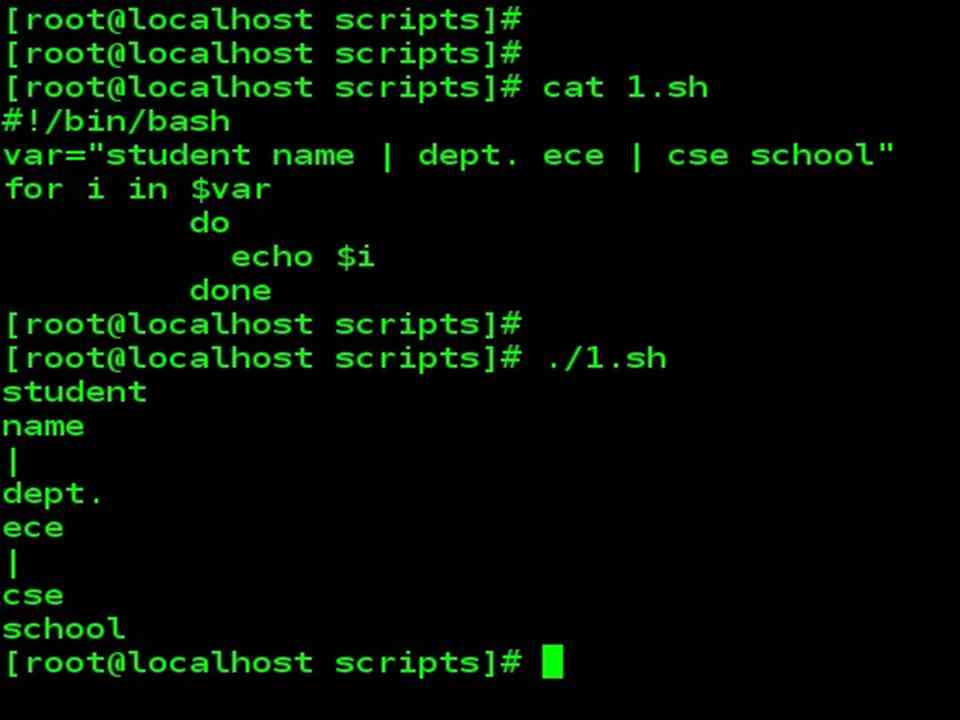
| Consider a script below. |
| Script |
| var=”student name | dept. ece | cse school“
for i in $var do echo $i done |
| In the script given above, we have used for loop, that is reading one word at a time, separated by a delimiter( space, tab or newline).
So it extracts the word until encounters space. |
| Output |
| student
name | dept. ece | cse school |
| Make your own delimiter: setting IFS (Internal Field Separator) variable |
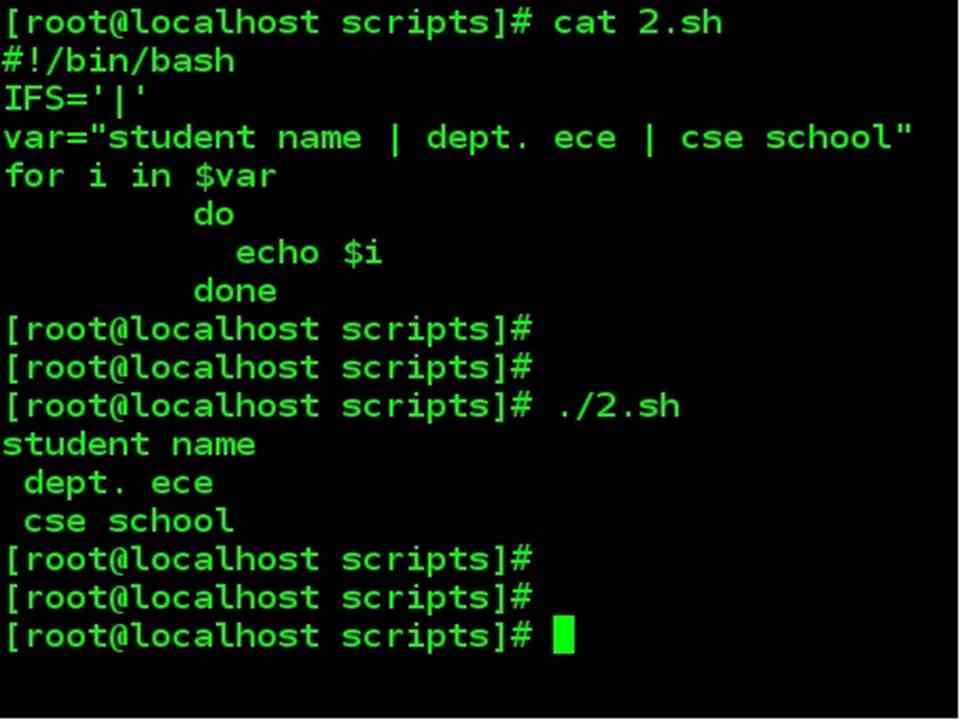
| Consider a script below. |
| Script |
| IFS=‘|’
var=”student name | dept. ece | cse school“ for i in $var do echo $i done |
| IFS variable is explicitly set to use | as a delimiter
In the script given above, we have used for loop, that is reading one word at a time, separated by a delimiter( | ) So it extracts the word until encounters | |
| Output |
| student name
dept. ece cse school |
Word Splitting
| Word Splitting |
| The shell scans the results of parameter expansion, command substitution, and arithmetic expansion that did not occur within double quotes for word splitting.
The shell treats each character of $IFS as a delimiter and splits the results of the other expansions into words on these characters. A sequence of IFS whitespace(space or tab) characters is also treated as a delimiter. If the value of IFS is null, no word splitting occurs. |
Globbbing
| Globbbing |
| Long ago, in UNIX V6, there was a program /etc/glob that would expand wildcard patterns. Soon afterward this became a shell built-in.
A string is a wildcard pattern if it contains one of the characters ‘?‘, ‘*‘ or ‘[‘. Globbing is the operation that expands a wildcard pattern into the list of pathnames matching the pattern. |
File Name Expansion
| File Name Expansion |
| After word splitting, unless the -f option has been set (using set command), bash scans each word for the characters “*“, “?“, and “[“. If one of these characters appears, then the word is regarded as a PATTERN, and replaced with an alphabetically sorted list of file names matching the pattern.
When a pattern is used for filename generation, the character “.“ at the start of a file name or immediately following a slash must be matched explicitly, unless the shell option dotglob is set. The GLOBIGNORE shell variable may be used to restrict the set of file names matching a pattern. The file names . and .. are always ignored, even when GLOBIGNORE is set. However, setting GLOBIGNORE has the effect of enabling the dotglob shell option, so all other file names beginning with a “.” will match. |