More File attributes
File Systems and Inodes
| File Systems |
| Every file system in Unix/Linux has a directory structure headed by root ( / )
If you have 3 file systems on the hard disk, then they will have 3 separate root directories. When the system is up, we see only a single file system with a single root directory. |
| Out of these multiple file systems, one of them is considered to be the main one and contains most of the essential files of the Linux system. This is the root file system, its root directory is also the root directory of the combined Linux system. At the time of booting, all secondary file systems mount (attach) themselves to the main file system, creating the illusion of a single file system to the user. |
| Inodes |
| Every file is associated with a table (metadata) that contains all that you could possibly need to know about a file – except its name and contents. This table is called inode ( index node ) and is accessed by the inode number. |
Inode attributes
| Inode attributes |
| The inode contains the following attributes of a file : |
|
| Observe that neither the name of the file nor the inode number is stored in the inode. It’s the directory that stores the inode number along with the filename. When you use a command with the filename as an argument, the kernel first locates the file from the directory and then reads the inode to fetch data relevant to the file. |
| Every file system has a separate portion set aside for storing inodes, where they are laid out in a contiguous manner. This area is accessible only to the kernel. The inode number is actually the position of the inode in this area. The kernel can locate the inode number of any file using simple arithmetic. Since a Unix/Linux machine comprises multiple file systems, you can conclude that the inode number for a file is unique in a single file system. |
Listing Inode
| Listing Inode: using ls command |
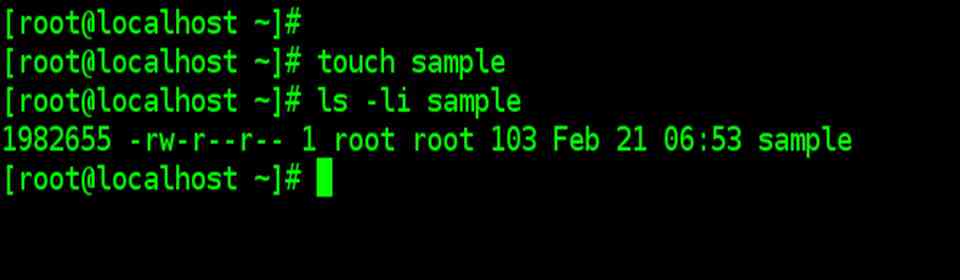
| The ls command reads the inode to fetch a file’s attributes, and it can list most of them using suitable options. One of them is the ( – i ) option that tells you the inode number of a file. |
| ls –il
|
Hard Links
| Hard Links |
| Why filenames are not stored in inode? |
| Because a file can have multiple filenames. And when that happens, we say file has more than one link. We can access the file by any of its links. All names provided to a single file have one thing in common, they all have same inode number. |
| Creating Hard links |
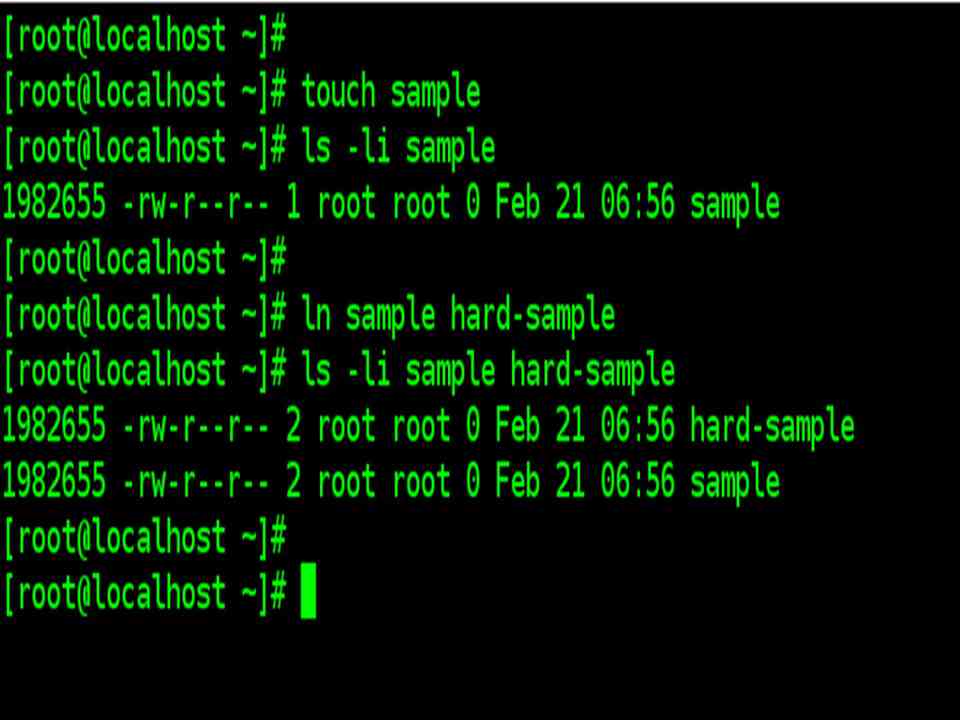
| A file is linked with the ln (link) command, which takes two filenames as arguments. The command can create both a hard and soft link (discussed later). It has a syntax similar to the one used by cp command. |
| ln sample hard-sample
ls –li sample hard-sample |
| hard-sample must not exist |
| Both sample and hard-sample have the same inode number.
And the link count in column 2 ( ls –li command output) is shown two, which is normally one for unlinked files. |
| Destination argument for ln command can be directory or filename.
ln command returns an error when the destination file exists. Use the –f option for the forced removal of an existing link before the creation of the new one. |
Where to use hard links
| Where to use hard links |
| Links are an interesting feature of the file system, but where does one use them. We can think of 3 situations straightway |
| 1. Let’s consider that you have written a number of programs that read a file foo.txt in $HOME/input_files. Later you reorganized your directory structure and moved foo.txt to $HOME/data instead. What happens to all the programs that look for foo.txt at its original location? Simple, just link foo.txt to the directory input_files |
| ln data/foo.txt input_files
The above command creates hard link in directory input_files |
| 2. Links provide some protection against accidental deletion, especially when they exist in different directories. Referring to the previous application, even though there’s only a single file foo.txt on disk, you have effectively made a backup of this file. If you inadvertently delete input_files/foo.txt one link will still be available in data/foo.txt , your file is not gone yet. |
| 3. Because of links, we don’t need to maintain two programs as two separate disk files if there’s very little difference between them. A file’s name is available to a C program ( as argv[0]) and to a shell script as ($0). A single file with two links can have its program logic make it behave in two different ways depending on the name by which it is called. |
Symbolic links and ln
| Symbolic links and ln |
| We have seen how links let us have multiple names for a file. These links are often called hard links, and have two limitations: |
| You can’t have two linked filenames in two systems. In other words, you can’t link a filename in the /usr filesystem to another in the /home file system.
You can’t link a directory even within the same file system. |
| The above limitations were overcome when symbolic links made their entry. Unlike the hard link, a symbolic link doesn’t have file content but simply provided the pathname of the file that actually has the contents. A symbolic link is also known as soft link.
Shortcuts in Windows OS are more like symbolic links. |
| The ln command creates a symbolic link also, except that you have to use the –s option.
touch note ln –s note note.sym ls –li note note.sym |
| You can identify symbolic links by the character l (el) seen in the permission field. The pointer notation -> suggests that note.sym contains the pathname for the filename note. When you type command cat note.sym, you don’t actually open the symbolic link but the file the link points to.
Symbolic links can also be used with relative pathnames. Unlike hard links, they can also span multiple file systems and also link directories. If you have to link all filenames in a directory to another directory, it makes sense to simply link the directories. |
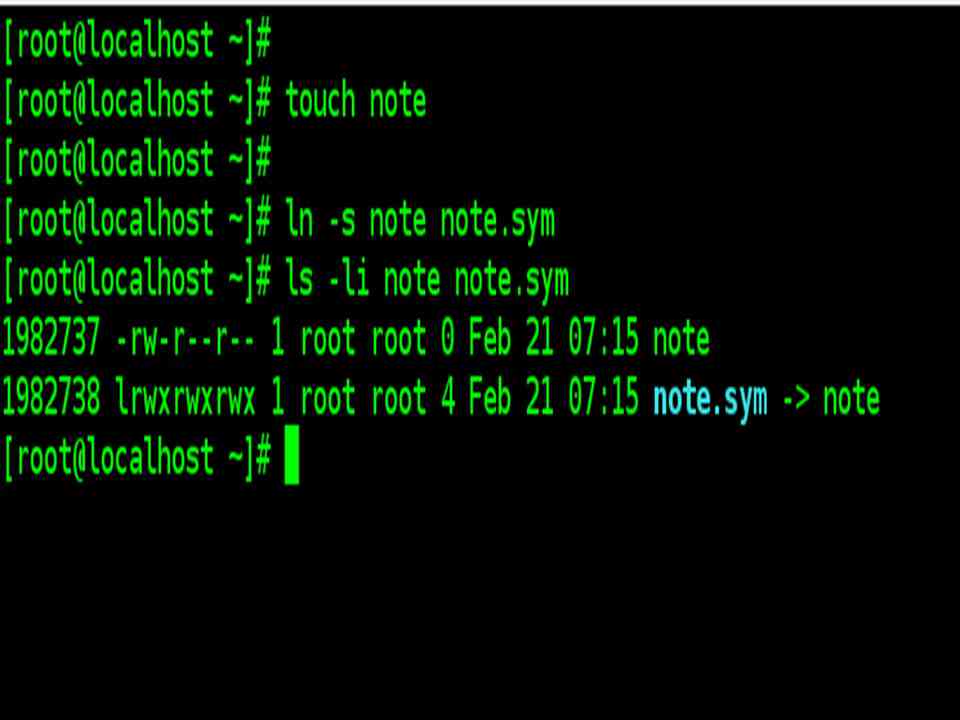
Note: A symbolic link has an inode number separate from the file that it points to. In most cases, the pathname is stored in the symbolic link and occupies space on the disk. However, Linux uses a fast symbolic link which stores the pathname in the inode itself provided it doesn’t exceed 60 characters
umask
| umask : Default File and directory permissions. |
| When you create files and directories, the permissions assigned to them depend on the system’s default setting. The UNIX/Linux system has the following default permissions for all files and directories.
rw-rw-rw– (octal 666) for regular files rwxrwxrwx (octal 777) for directory files |
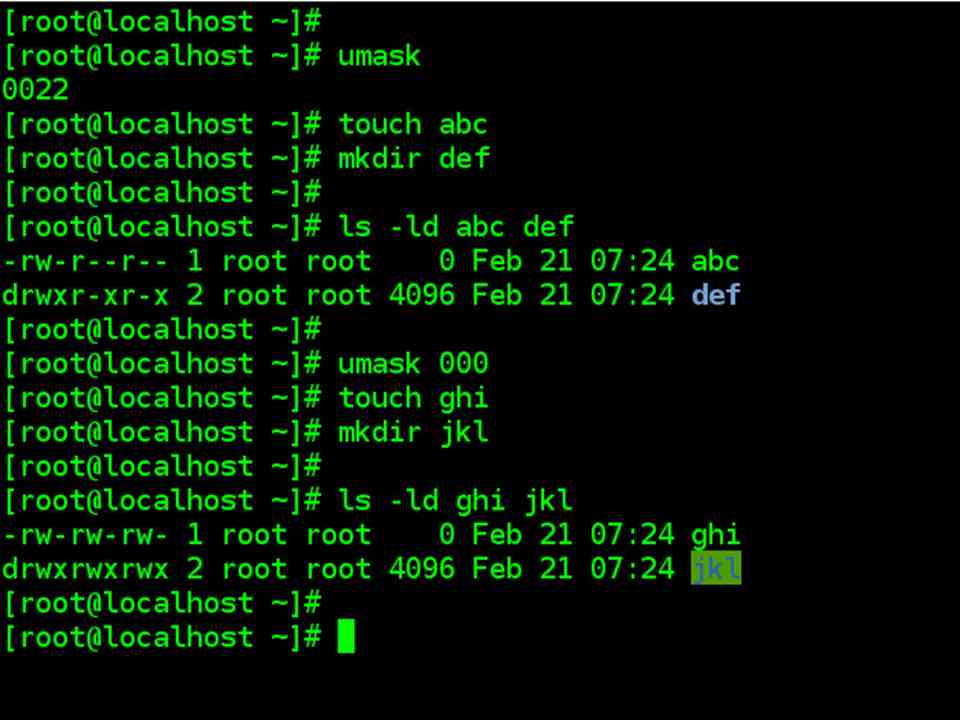
| However, you don’t see these permissions when you create a file or directory. Actually , this default is transformed by subtracting the user mask from it to remove one or more permissions. To understand what this means, let’s evaluate the current value of the mask by using umask without arguments.
umask 0022 |
| This is an octal number which has to be subtracted from the system default to obtain the actual default. This becomes 644 (666 – 022) for ordinary files and 755 (777 – 022) for directories. |
| A user can also use this command to set a new default.
umask 000 A umask of 000 means that you haven’t subtracted anything, and this could be dangerous. Because all files and directories are then writable by all. |
MODIFICATION & ACCESS TIMES
| MODIFICATION & ACCESS TIMES |
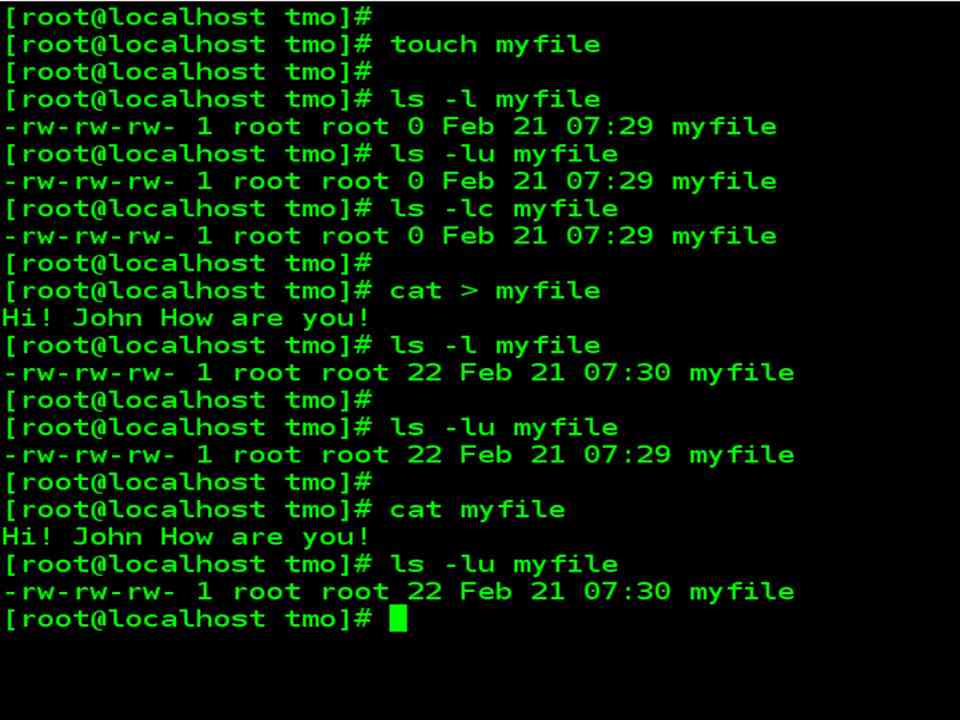
| A UNIX/Linux file has three timestamps associated with it. We’ll discuss only two of them |
| Time of last modification
ls –l Time of last access ls –lu Time of last inode modification ls -lc |
| Whenever you write to a file, the time of the last modification is updated in the file’s inode. A directory can be modified by changing its entries – by creating, removing and renaming files in the directory. Note that changing a file’s contents only changes its last modification time but not that of its directory. ls –l displays the last modification time. |
| A file also has an access time. Suppose, the last time someone read, wrote or executed the file. For a directory, the access time is changed by a read operation only, creating or removing a file or doing a “cd” to a directory doesn’t change its access time. The access time is displayed when ls –l is combined with –u option. |
| When we add the –t option to –l or –lu, the files are actually displayed in order of the respective time stamps. |
touch: Changing the timestamps
| touch: Changing the timestamps |
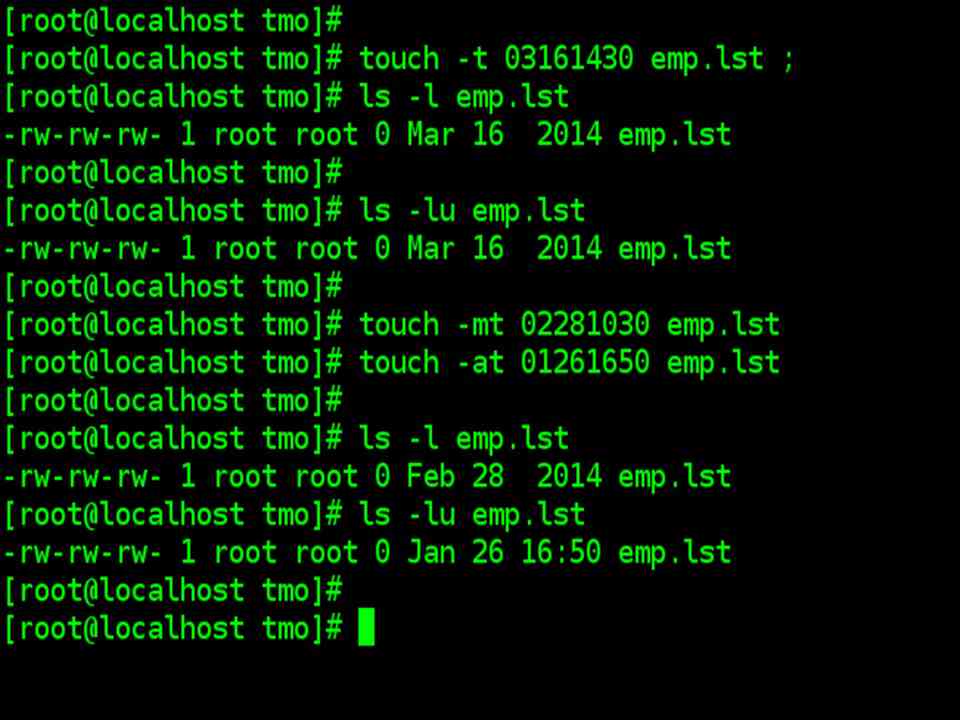
| The touch command can change the last modification time and last access time.
touch options expression filename(s) |
| When touch is used without options or expressions, both times are set to the current time. The file is created if it doesn’t exist
touch emp.lst |
| When touch is used without options but with expansion, it changes both times. The expression consists of an eight-digit number using the format MMDDhhmm ( month, day, hour and minute). Optionally, you can suffix a two- or four-digit string:
touch 03161430 emp.lst ; ls –l emp.lst ls –lu emp.lst |
| It’s also possible to change the two times individually. The -m and –a options change the modification and access times, respectively
touch –m 02281030 emp.lst ls –l emp.lst touch –a 01261650 emp.lst ls –lu emp.lst |
find: Locating Files
| find: Locating Files |
| find command recursively examines a directory tree to look for files matching some criteria and then takes some action on the selected files. It has a difficult command line, and if you have ever wondered UNIX /Linux is hated by many, then you should look up the cryptic find documentation. However, find is easily tamed if you break up its arguments into three components. |
| find path_list selection_criteria action |
| This is how find operates : |
| First, it recursively examines all files in the directories specified in path_list
It then matches each file for one or more selection_criteria Finally, it takes some action on those selected files. |
| The path_list comprises one or more subdirectories separated by whitespace. There can also be a host of selection_criteria that you can use to match a file, and multiple actions to dispose of the file. |
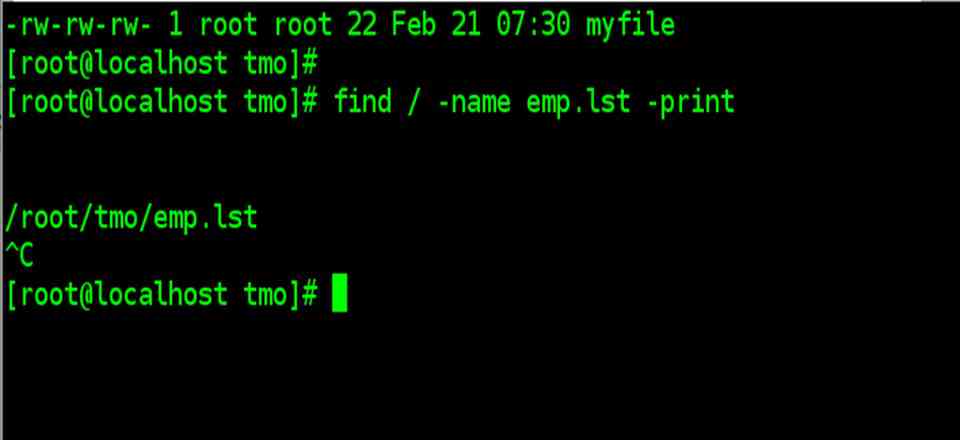
| find to locate stdio.h file
find / -name stdio.h –print |
| The path list(/) indicates that the search should start from the root directory. Each file in the list is then matched against the selection criteria ( -name stdio.h), which always consists of an expression in the form –operator argument. If the expression matches the file, the file is selected. The third section specifies the action ( -print) to be taken on the files, in this case, a simple display on the terminal. All find operators start with a – |
| Note: find in Unix displays the file list only if the –print operator is used. However, Linux doesn’t need this option, it prints by default. Linux also doesn’t need the path list. It uses the current directory by default. Linux even prints the entire file list when used without any options whatsoever. This behavior is not required by POSIX. |
|
|
| Using relative path and wildcards in find command |
| You can also use relative names (like the . ) in the path list, and find will then output a list of relative pathnames. When find is used to match a group of filenames with a wildcard pattern, the pattern should be quoted to prevent the shell from looking at it. |
| find . –name “*.c” –print |
| find . –name ‘[A-Z]*’ –print |
|
|

| Selection Criteria |
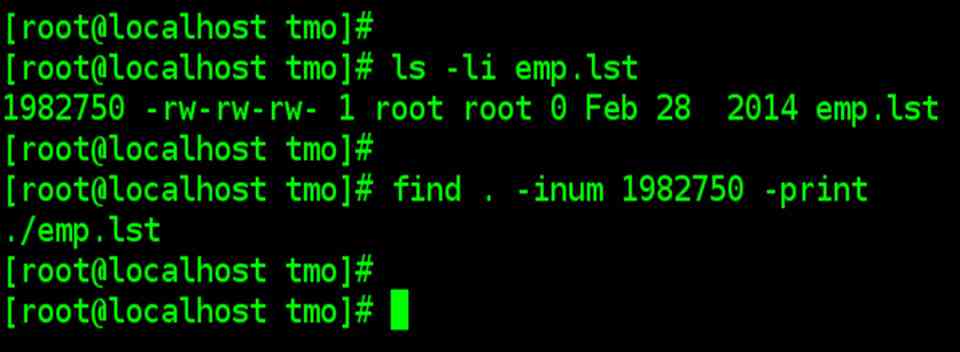
| Locating a File by Inode number ( –inum) |
| find / –inum 13975 –print |
| File type & Permissions ( -term and –perm) |
| The -t option followed by the letter f,d or l selects file of the ordinary, directory and symbolic link type. Here’s how you locate all directories of your home directory tree.
cd ; find . –type d –print 2>/dev/null Note the relative pathname find displays, but that’s because the pathname itself was relative (.) find also doesn’t necessarily display an ASCII sorted list. The sequence in which files are displayed depends on the internal organization of the file system. |
| The – perm option specifies permission to match. For instance, -perm 666 selects files having read and write permission for all categories of users. We can also use options in combination, such as to restrict the search to only directories
find $HOME –perm 777 –type d –print Find uses an AND condition ( an implied –a operator between -perm and –type ) are fulfilled. |
| Finding unused files ( –mtime and –atime) |
| File tends to build up incessantly on disk. Some of them remain unaccessed or unmodified for months, even years. find’s options can easily match a file’s modification ( –mtime) and access
(-atime) times to select them. –mtime helps in backup operation by providing a list of those files that have been modified, say in less than 2 days. |
| find . –mtime -2 -print |
| -2 here means less than 2 days. |
| find /home –atime +365 –print
+365 means greater than 365 days -365 less than 365 days -atime access time
|
| The find operators ( ! , -o , -a ) |
| There are three operators that are commonly used with find. The ! Operator is used before an option to negate its meaning. |
| find . ! –name “*.h” –print |
| Select all files excluding header files. |
| find . \( -name “*.sh” –o –name “*.c” \) –print |
| To look for both c file and shell files, use the –o operator which represents an OR condition. We need to use an escaped pair of parentheses here. |
| The –a option represents the AND condition, and is implied b default whenever two selection criteria are placed together. |
| find command Options | |
| Selection Criteria | Selects File |
| -inum | Having inode number n |
| -type x | If of type x (ordinary, directory, symbolic) |
| -type f | If an ordinary file |
| -perm nnn | IF octal permissions match nnn completely |
| -links n | If having n links |
| -user usname | If owned by usname |
| -group gname | If owned by group gname |
| -size +x[c] | If size greater than x locks (character if c is also specified) |
| -mtime –x | If modified in less than x days |
| -newer flname | If modified after flname |
| -mmin –x | If modified in less than x minutes |
| -atime +x | If accessed in more than x days |
| -amin +x | If accessed in more than x minutes |
| -name flname | flname |
| -iname flname | As above but match is case-sensitive |
| -follow | After following symbolic links |
| find command Options | |
| Action | Significance |
| Prints selected file on standard output | |
| –ls | Executes ls –lids command on a selected file |
| -exec cmd | Executes command followed by { } \; |
| Displaying the –ls option | |
| find . –type f –mtime +2 –mtime -5 –ls
find here runs the ls –lids command to display a special listing of regular files that are modified in more than two days and less than five days. |
|
| Taking actions on the selected file ( -exec)
find . –type f –atime +365 –exec rm {} \; This will use rm to remove all ordinary files unaccessed for more than a year. |
|