Process in Linux
Process Basics
| A process is simply an instance of a running program. A process is said to be born when the program starts execution and remains alive as long as the program is active. After execution is complete, the process is said to die.
For example, when you execute grep command, a process named grep is created. However, a process can’t be considered synonymous with a program. When two users run the same program, there’s one program on disk but two processes in memory. |
| Files have attributes and so do processes. Some attributes of every process are maintained by the kernel in memory in a separate structure called process table. |
Two important attributes of a process
| The process-id (PID): Each process is uniquely identified by a unique integer called the process-id (PID) that is allocated by the kernel when the process is born. We need this PID to control a process, for instance, to kill it.
|
| The Parent PID(PPID): The PID of the parent is also available as a process attribute. When several processes have the same PPID, it often makes sense to kill the parent rather than all its children separately.
|
Shell Process
| The Shell Process |
| The commands shell maintains a set of environment variables, and you have already encountered some of then like PATH and SHELL. The shell’s pathname is stored in SHELL, but its PID is stored in a special variable, $$.
To know the PID of your current shell, type echo $$ |
| The PID of your login shell can’t obviously change as long as you are logged in. When you logout and login again, your login shell will be assigned a different PID. Knowledge of the PID is often necessary to control the activities at your terminal, especially when things go wrong. |
Parent and Child Relationship
| Parent and Child relationship |
| Every process has a parent. Parent itself is a process, and a process born from it is said to be its child. When you rub the command
ls –l from the keyboard, a process representing the ls command is started by the shell process. This ls process remains active as long as the command is active. The bash shell is said to be the parent of ls, while ls is said to be the child of the shell. |
| ls –l | grep ‘-’
The above command sets up two processes for the two commands. These processes have the names ls and grep, and both are spawned ( when a process creates child process) by the shell. |
Process Status
| ps: Process Status |
| ps command is used to display some process attributes. By default, ps displays the processes owned by the user running the command. If you execute the command immediately after logging in, what you see could look like this :
ps PID TTY TIME CMD 291 console 0:00 bash |
| PID shows the process-id of a shell,
TTY the terminal with which the process is associated TIME the time consumed (cumulative processor time) since the process has started. CMD the process name
|

| ps | ||
| POSIX Options | BSD Options | Significance |
| -f | f | Full Listing showing the PPID of each process |
| -e or –A | aux | All processes including user and system processes |
| -u usr | U usr | Processes of user usr only |
| -a | Processes of all users excluding processes not associated with terminal | |
| -l | l | Long listing showing memory-related information |
| -t term | t term | Processes running on a terminal term (say, /dev/tty2 |
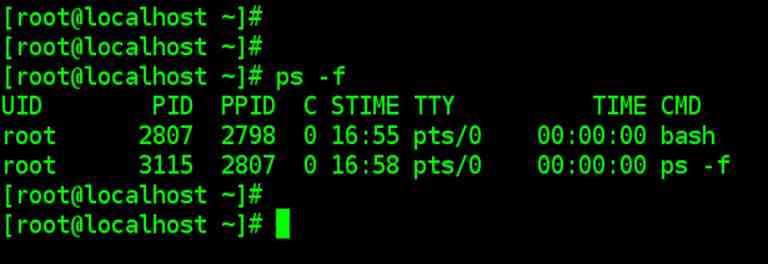
| ps -f |
| Full Listing (-f)
To get a detailed listing which also shows the parent of every process, use the –f (full) option |
| ps -f |
| Screenshot |
| UID owner of process
PPID process-id of parent process PID process-id of process STIME shows the time the process started CMD displays the entire command line with its arguments. We will discuss C header later
|
| Displaying the process of a user (-u) |
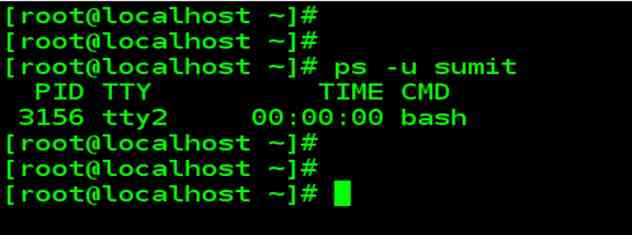
| -u option displays the process related to user |
| ps -u sumit |
| Screenshot |
| PID process-id of process
TTY the terminal with which the process is associated TIME the time consumed (cumulative processor time) since the process has started. CMD displays the command
|
| Displaying all user processes (-a) |
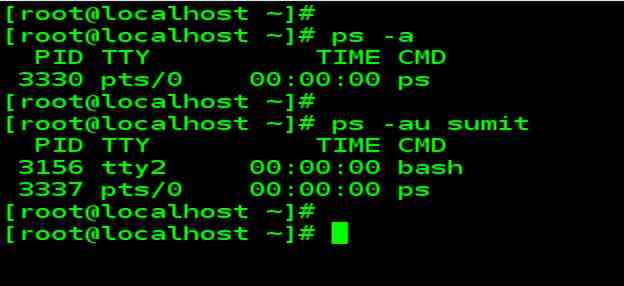
| The –a (all) option lists the processes of all users but doesn’t display the system processes. |
| ps -a |
| Screenshot |
| PID process-id of process
TTY the terminal with which the process is associated TIME the time consumed (cumulative processor time) since the process has started. CMD displays the command
|
| System Processes (-e or –A) |
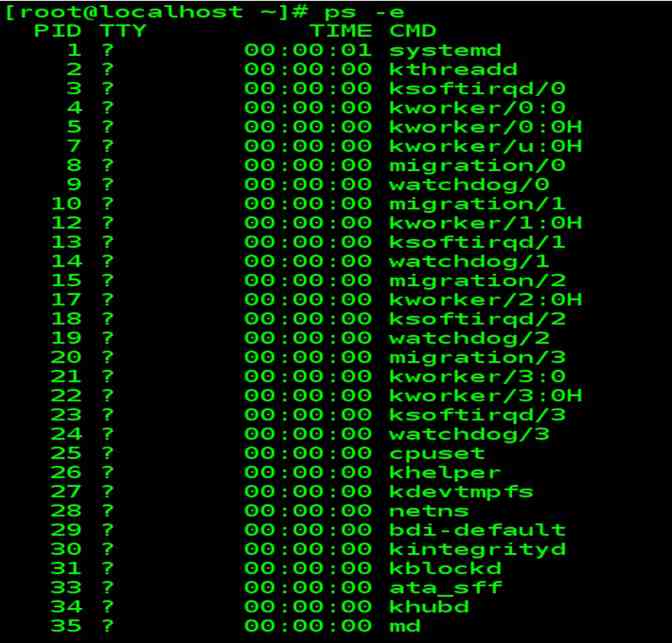
| Apart from system processes a user generates, a number of system processes keep running all the time. Most of them are not associated with any terminal (having no controlling terminal). They are spawned during system startup and some of these start when the system goes to the multiuser state. To list all processes running on your machine, use the –e or –A option to ps.
On a busy system, this list could be very long, we are showing the trimmed output of ps –e command in the next image. |
| ps -e |
| System processes are easily identified by the ? In the TTY column, they generally don’t have a controlling terminal (term used twice before). This means that the standard input and output of these processes are not connected to the terminal. You can’t press [Ctrl-c] to interrupt these processes either. These processes are known as daemons because they are called without a specific request from the user. Many of the daemons are actually sleeping and wake up only when they receive input. |
Mechanism of process creation
| Mechanism of process creation |
| There are three distinct phases in the creation of a process and uses three important system calls or functions – fork, exec and wait. |
| Fork: A process in UNIX/Linux is created with the fork system call, which creates a copy of the process that invokes it. The process image is practically identical to that of the calling process, except for a few parameters like the PID. When a process is forked in this way, the child gets a new PID. The forking mechanism is responsible for the multiplication of processes in the system. |
| Exec: Forking creates a process but it is not enough to run a new program. To do that, the forked child needs to overwrite its own image with the code and data of a new program. This mechanism is called exec, and the child process is said to exec a new program. No new process is created here, the PID and PPID of the exec remain unchanged |
| Wait: The parent then executes the wait system call to wait for the child process to complete. It picks up the exit status of the child( explained shortly) and then continues with its other functions. |
| When a process is forked, the child has a different PID and PPID from its parent. However, it inherits most of the environment of its parent. The important attributes that are inherited are : |
| The real UID and real GID of the process. These are attributes that we relate to a file, but here they represent the UID and GID of the user running the program ( and not of the file that is executed). These parameters are stored in the entry for the user in /etc/passwd. |
| The effective UID and effective GID of the process. These are generally the same as their “real” cousins but some processes behave differently. |
| The current directory from where the process was run. This is something you must remember to understand why you can’t create a process to change your directory. |
| Environment variables like HOME and PATH |
When Real UID differs from Effective UID
| HOW IT WORKS: When Real UID differs from Effective UID |
| Why does every process have two UIDs and two GIDs ( real and effective) ? |
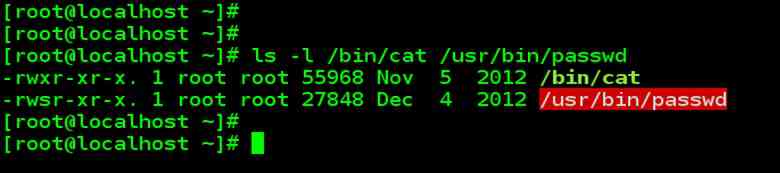
| The most program we run has the real UID and GID, the same as effective UID and GID. Now consider the listing of these two programs |
| ls –l /bin/cat /usr/bin/passwd
–rwxr–xr-x 1 root root 14264 2002-09-10 18:43 /bin/cat –rwsr–xr-x 1 root shadow 68680 2002-09-11 18:43 /usr/bin/passwd |
| When a guest user runs cat, the real and effective GID of the cat process is the same – guest.
Being a nonprivileged user, guest can’t use cat to open a file that is readable only by root |
| Now notice the bit marked s in the permission field of passwd. This bit, called the set-user-id (SUID), changes the normal ownership scheme. When the guest runs passwd, the real UID is still guest, but the effective UID is the root, the owner of the program. Because it’s the effective UID, not the real UID, that determines the access rights of the process, the passwd process run by guest (if permissible) can open any file that is readable by root.
|
INTERNAL & EXTERNAL COMMANDS
| INTERNAL & EXTERNAL COMMANDS |
| From the process viewpoint, the shell recognizes three types of commands |
| External commands: The most commonly used ones are the Linux utilities and programs, like cat and ls, etc. The shell creates a process for each of these commands that it executes while remaining their parent. |
| Shell Scripts: The shell executes these scripts by spawning another shell, which then executes the command listed in the script. The child shell become the parent of the commands that features in the script. |
| Internal commands: The shell has a number of built-in commands as well. Some of them like cd and echo don’t generate a process and are executed directly by the shell. |
Why Directory change can’t be made in a separate process
| Why Directory change can’t be made in separate process |
| We know that a child process inherits the current working directory from its parent as one of its environmental parameters. This inheritance has important consequence for cd command |
| It’s necessary for the cd command not to spawn a child to achieve a change of directory. If it did so through a separate child process, then after cd has completed its run, control would revert to parent and the original director would be restored. It would then be impossible to change directories. |
PROCESS STATES AND ZOMBIES
| PROCESS STATES AND ZOMBIES |
| At any instant of time, a process is in a particular state.
A process after creation is in the running state before it actually runs. A process is in sleep if it is waiting for an I/O operation. A process can be suspended by pressing [Ctrl-z] Processes whose parents don’t wait for their death, move to zombie state. When a process dies, it immediately moves to the zombie state. It remains in this state until the parent picks up the child’s exit status( the reason for waiting) from the process table. When that is done, the kernel frees the process table entry. A zombie is a harmless dead child but you can’t kill it. It’s also possible for the parent itself to die before the child dies. The child then becomes an orphan and the kernel makes init the parent of all orphans. When this adopted child dies, init waits for its death. |
RUNNING JOBS IN BACKGROUND
| RUNNING JOBS IN BACKGROUND |
| There are two ways of doing this –
With the shell & operator The nohup command. nohup command permits you to logout while your jobs are running, but & operator has no such facility. |
| &: NO Logging out
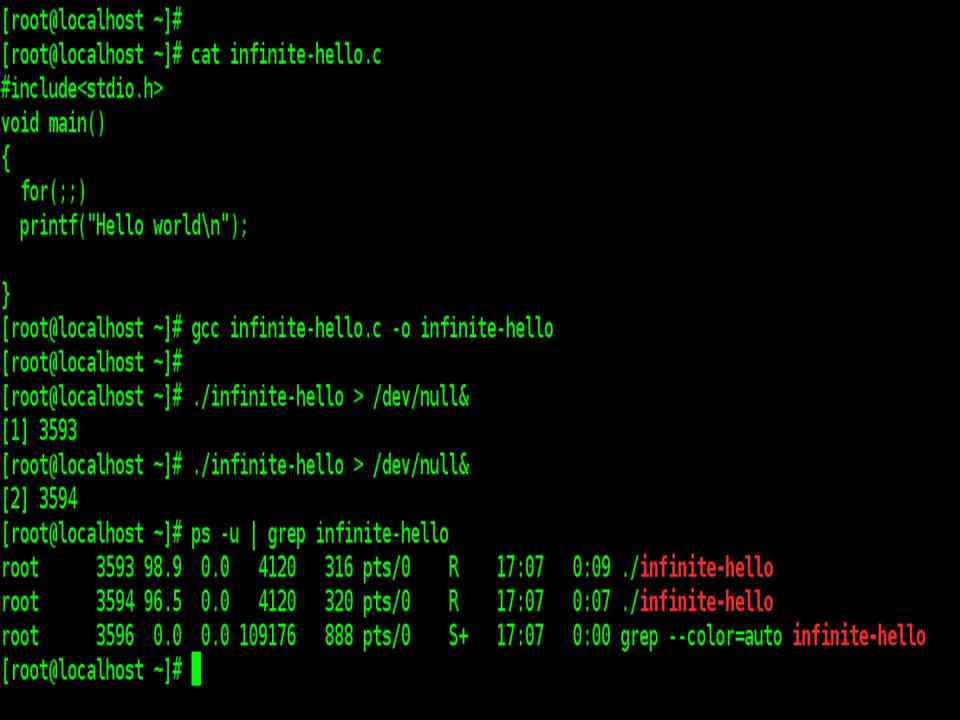
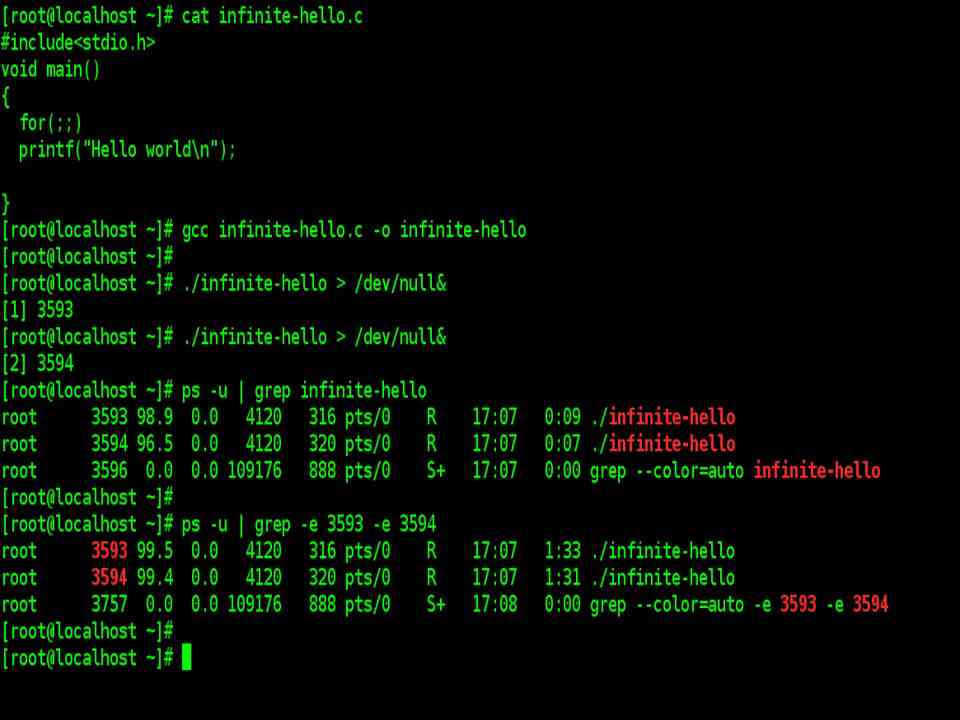
Create an executable c program infinite-hello that prints “hello world” infinitely Then type the following command ./infinite-hello > /dev/null & After executing shell returns a PID of the invoked command. The prompt is returned and the shell is ready to accept another command even though the previous command has not been terminated yet. The shell, however, remains the parent of the background process. Using an & you can run as many jobs in the background as the system load permits. Standard output and standard error of a job running in the background may or may not come to the terminal. If they do, make sure that both are redirected suitably. |
| RUNNING JOBS IN BACKGROUND |
| nohup: Log out safely |
| Background job ceases to run when a user logs out (depending on the shell). That happens because the shell is itself killed.
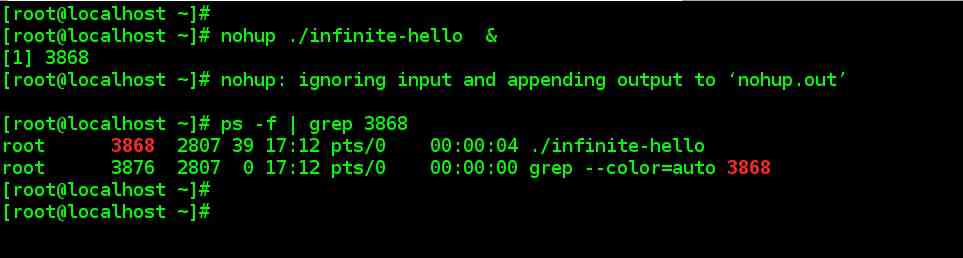
The nohup (no hangup) command, when prefixed to a command, permits execution of the process even after the user has logged out. You must use the & with it as well nohup ./infinite-hello & The shell returns the “PID” this time too. Now exit from the shell and open a new shell. Type ps –f | grep PID You will find that your infinite-hello is still running |
nice: Job execution with low priority
| nice: Job execution with low priority |
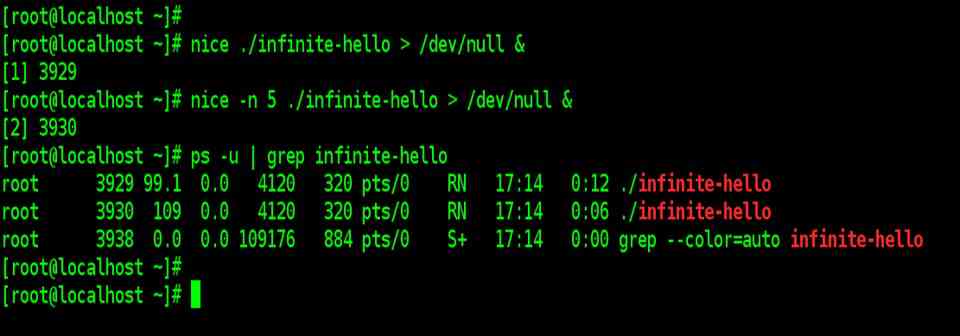
| Processes in Linux are usually executed with equal priority. This is not always desirable since high-priority jobs must be completed at the earliest. Linux offers a nice command, which is used with & operator to reduce the priority of jobs. |
| To run a job with low priority, the command name should be prefixed with nice.
nice infinite-hello > /dev/null & |
| Nice values are system dependent and typically range from 1 to 19. A higher nice value implies a lower priority. You can also specify the nice value explicitly with the –n option
nice –n 5 infinite-hello > /dev/null & |
| A non-privileged user can’t increase the priority of a process. |
Kill: Premature Termination of a process
| Kill: Premature Termination of a process |
| In the early days, kill was used only to terminate a process. Today, with so many signals available, the name “kill” today has turned a misnomer, all signals don’t kill a process |
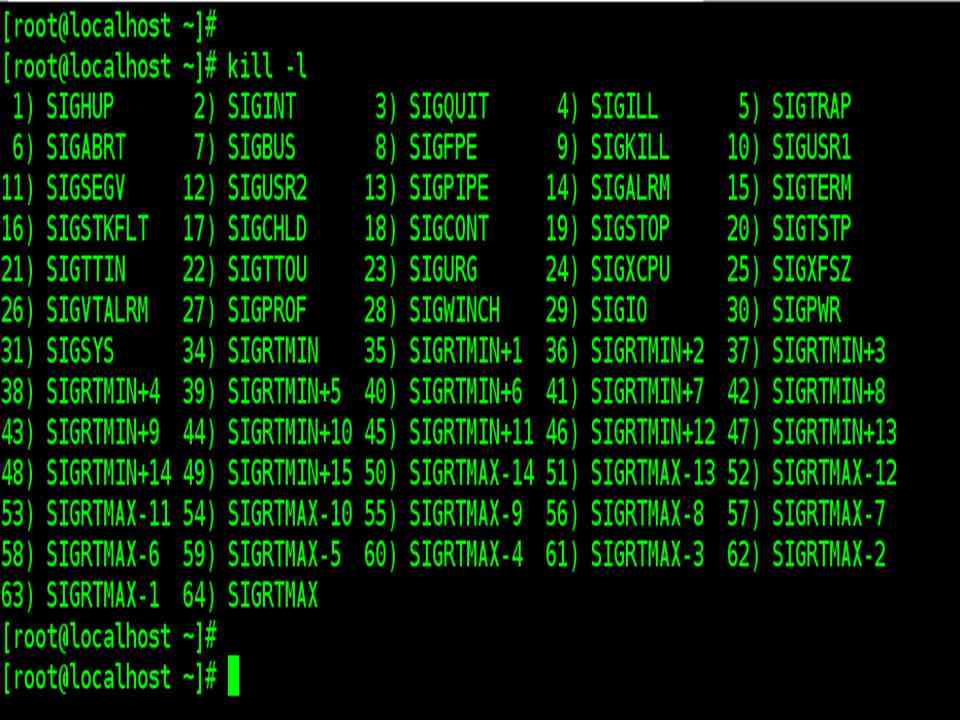
| To list all the signal and signal values, type
kill -l |
| The kill commands send a signal, usually with the intention of killing one or more processes. Kill is an internal command in most shells, the external /bin/kill is executed only when the shell lacks the kill capability. The command uses one or more PIDs as its arguments, and by default uses the SIGTERM (15) signal.
kill 2891 5234 Note: The above two PID might not present in your system |
| Using kill with other signals |
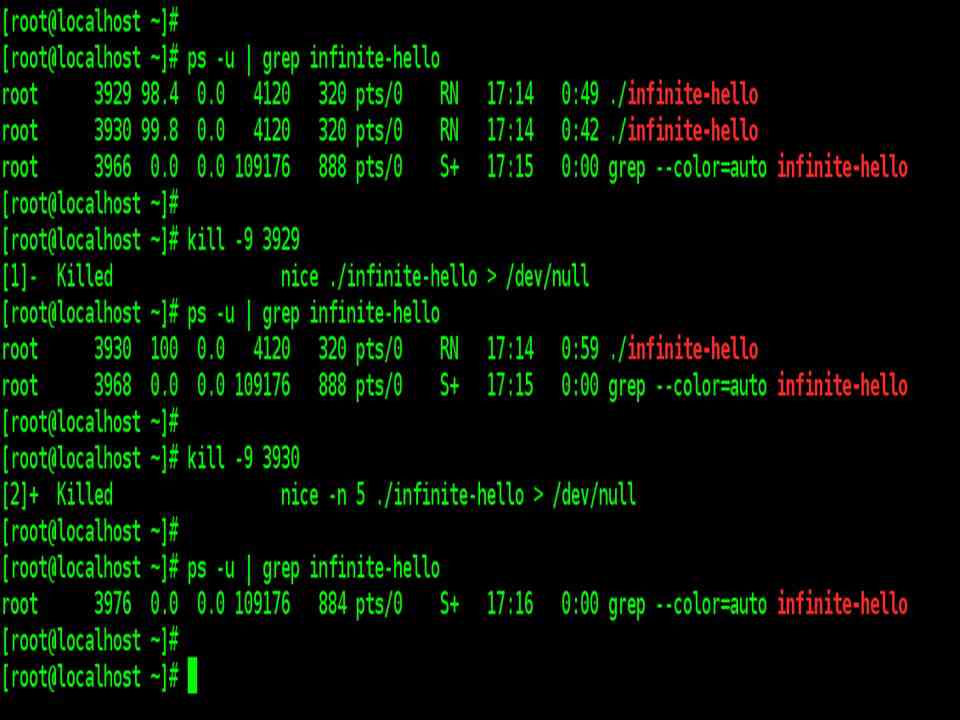
| By default, kill uses the SIGTERM signal (15) to terminate the process. You may notice that some programs simply ignore it and continue execution normally. In that case, the process can be killed by the SIGKILL signal(9).
The recommended way of using kill kill –s KILL 2891 Same as above but not recommended kill –9 2891 |
JOB Control
| JOB Control |
| Bash provides inbuilt job control facilities to manipulate jobs. |
| Relegate a job to the background (bg)
Bring it back to the foreground (fg) List the active jobs (jobs) Suspend a foreground job ( [Ctrl-z]) Kill a job (kill) |

at and batch: Execute Later
| at and batch: Execute Later |
| Unix/Linux provides sophisticated facilities to schedule a job to run at a specified time of day. If the system load varies greatly throughout the day, it makes sense to schedule lee urgent jobs at a time when the system overheads are low. The at and batch commands make scheduling possible, |
| at: One-time execution |
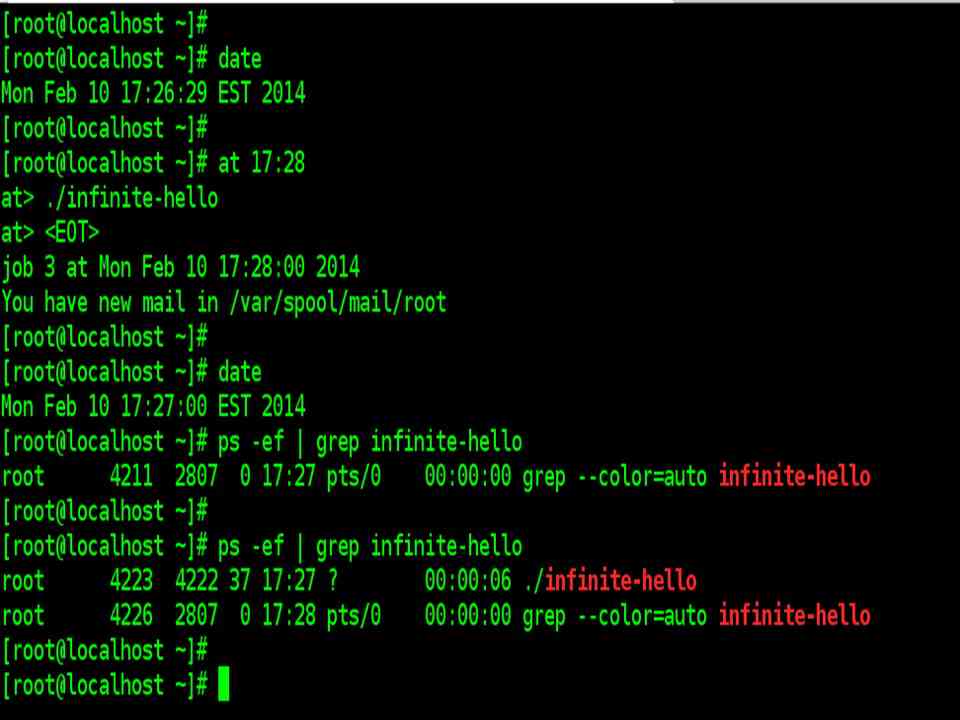
| at takes as its argument the time the job is to be executed and displays the at> prompt. Input has to be supplied from the standard input : |
| at 14:08
at> ./infinite-hello > /dev/null [Ctrl-d] |
| The job is going to queue, and at 2:08 pm today, the infinite-hello executable program will be executed. Above, we have redirected the output to /dev/null. |
| You can also use the –f option to take commands from a file. |
| at also offers the keywords now, noon, midnight, today and tomorrow. The words can be used with this operator include hours, days, weeks, months and years. |
| at examples | |
| at 15 | 24-hour format assumed |
| at 5 pm | |
| at 3:08pm | |
| at noon | At 12:00 hours today |
| at now + 1 year | at current time after 1 year |
| at 3:08pm + 1 day | at 3:08 p.m. tomorrow |
| at 15:08 December 18, 2001 | |
| at 9am tomorrow | |
| Jobs can be listed with the at –l command and removed with at –r. Unfortunately, there’s no way you can find out the name of the program scheduled to be executed. This can create problems, especially when you are unable to recall whether a specific job has actually been scheduled for later execution. | |
| batch: Execute in queue |
| The batch command also schedule jobs for later execution, but unlike at, jobs are executed as soon as system load permits. The command uses an internal algorithm to determine the execution time. This prevents too many CPU-hungry jobs from running at the same time. The response of batch is similar to at otherwise. |
| batch < file |
| Any job scheduled with batch goes to a special at queue from where it can be removed with
at -r |
cron: Running Jobs periodically
| cron: Running Jobs periodically | ||
| The ps –e command always shows he cron daemon running. Unlike at and batch that are meant for one-time execution, cron executes programs at regular intervals. It is mostly dormant, but every minute it wakes up and looks in a control file (the crontab file) in /var/spool/cron/crontabs for instructions to be performed at that instant. After executing them, it goes back to sleep, only to wake up the next minute. | ||
| cron command format | ||
| MIN HOUR DOM MON DOW CMD | ||
| Field | Description | Allowed Value |
| MIN | Minute field | 0 to 59 |
| HOUR | Hour field | 0 to 23 |
| DOM | Day of Month | 1-31 |
| MON | Month field | 1-12 |
| DOW | Day Of Week | 0-6 |
| CMD | Command | Any command to be executed. |
| batch: Execute in queue |
| Scheduling a Job For a Specific Time |
| 30 08 10 06 * who > backuplist |
| The command will execute on 10th June 08:30 AM. |
| Viewing crontab entries for user already logged in |
| crontab -l |
| Viewing Other Linux User’s Crontabs entries |
| crontab -u guest -l |
| To edit a crontab entry, use
crontab –e You can create a new entry, modify or delete existing. By default, this will edit the current logged-in user crontab. |

time: TIMING PROCESS
| time: TIMING PROCESS |
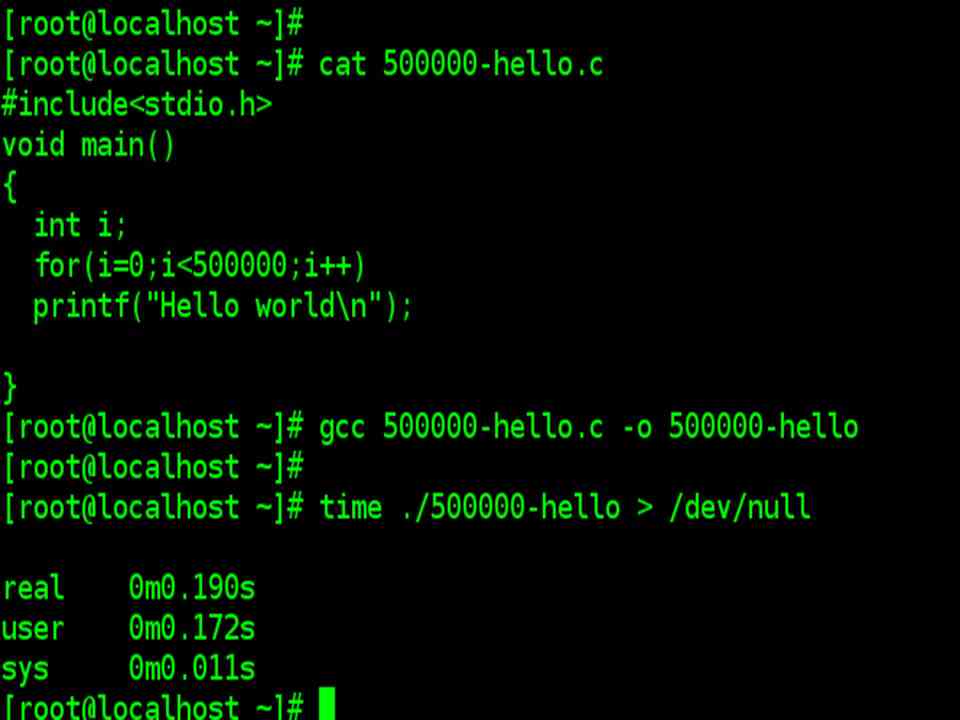
| Before proceeding for time command, create an executable c program that prints “hello world” for 2000 times. |
| The time command accepts the entire command line as an argument and executes the program and also displays time usage on the terminal. |
| time ./2000-hello |
| real time shown is the clock elapsed time from the invocation of the command until its termination. The user time shows the time spent by the program in executing itself. sys indicates the time used by the kernel in doing work on behalf of the user process. The sum of the user and sys time actually represents the CPU time. This could be significantly less than the real time on a heavily loaded system. |