Basics of Linux File System
FILE SYSTEM & NAMESPACE
-
-
- To begin the journey of any O/S we have to first understand the file system & namespace.
- What is a File system & namespace?
- File System: It is a collection of files & directories in a formal & valid hierarchy.
- The file system helps us to organize files & directory manipulation.
- We can remove, copy, move files from one directory to another because of file system help us to track all the directories & files.
- Namespace: On a file system using namespace we can access files & directories.
-
FILE SYSTEM ON LINUX
Organized as a tree
-
-
- Begins with Root /
- We see all the directories & files under this / partition
- Each node is a directory
- It is a tree-level structure
- Each directory can contain other files or directories or both
-
Every file in a given directory must be unique.
File names and commands are case sensitive.
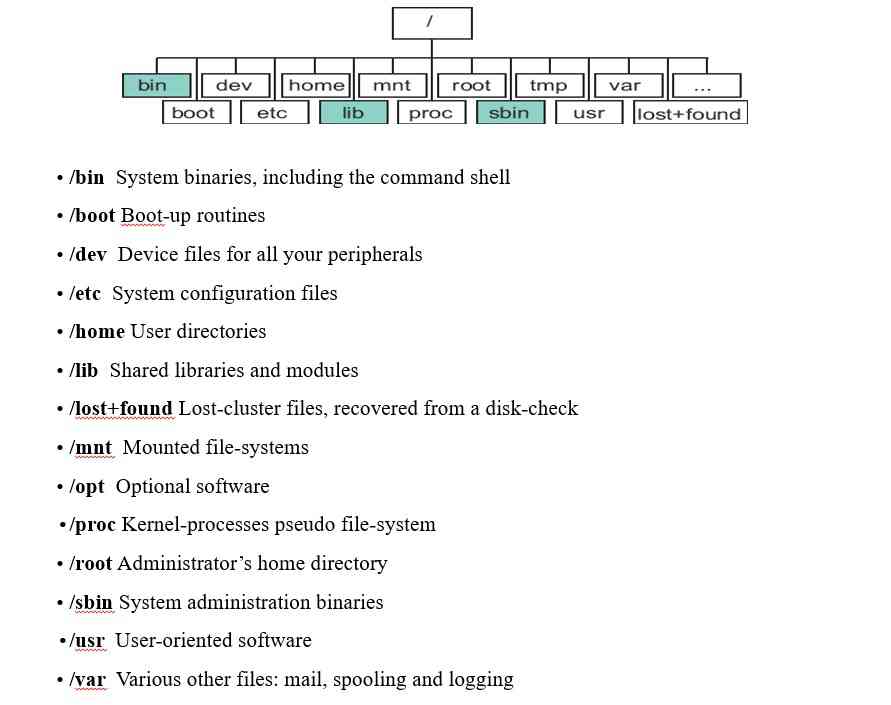
TREE STRUCTURE HIERARCHY
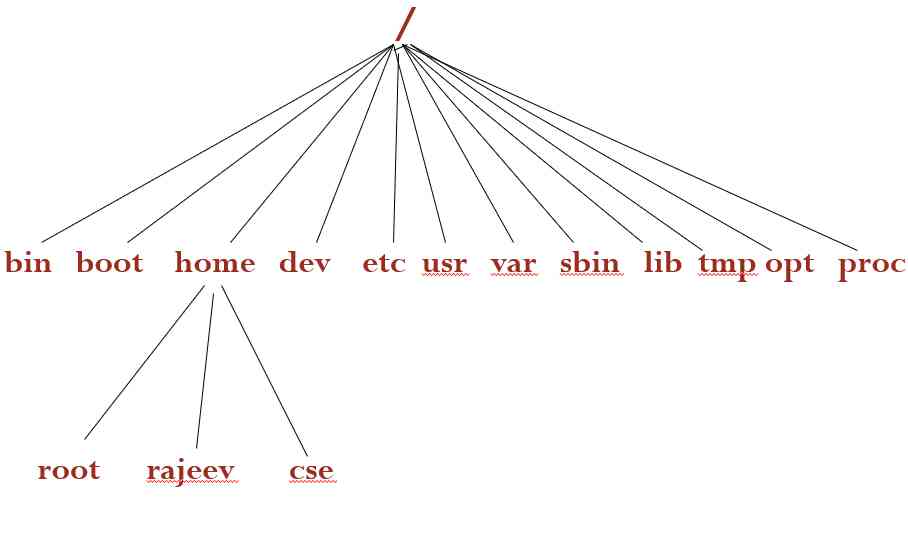
NAMESPACE
- On a file system using namespace, we can access files & directories.
- Different O/S have different namespace style.
- Ex – On a windows platform, to access a directory under dir
programs which are in C drive we use PATHNAME
C:\programs\dir\
NAMESPACE ON LINUX
- Accesing files & directories through linux namespace.
- With this namespace, we will understand PATHNAME.
- We know that all the files & directories are under the ROOT / partition (Don’t confuse it with root directory — /home/root )
- We follow the pathname on LINUX with a forward slash
- We traverse the directories with a forward slash.
To access directory cse — /home/cse
To access file date — /bin/date
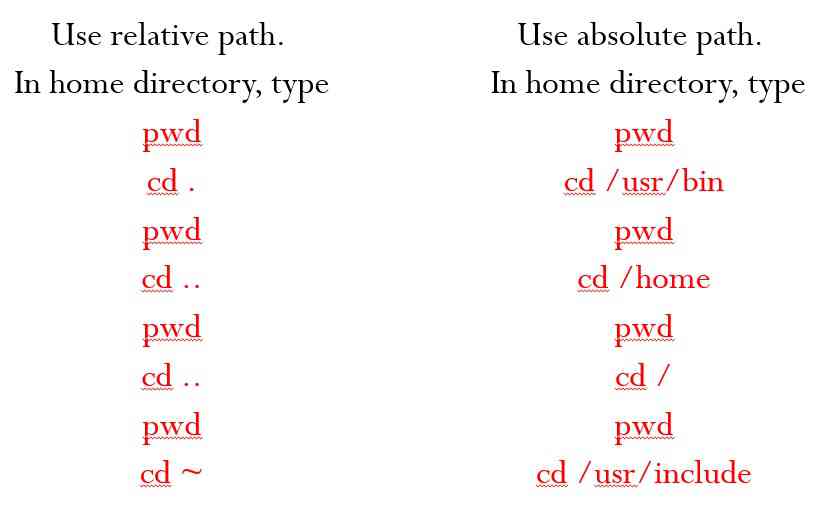
Relative and absolute path in File System
- Path means a position in the directory tree.
- To express a path, you can use a relative path or absolute path.
- In relative path expression, the path is not defined uniquely, depends on your current path.
- In absolute path expression, the path is defined uniquely, does not depend on your current path.
- Files are referenced by name
-
-
- Absolute reference: beginning with /
- Relative reference: based on the current directory
-
- Shortcuts used by Relative path
-
-
- “..” parent directory
- “.” current directory
- “~” home directory
-
Examples for Relative and absolute path referencing
Listing Files
- To see what files you have in your directory you type “ls“, which stands for list
- But this won’t show you all the files in the directory, to do so you should type “ls -a” where the “a” stands for all (to show the hidden file as well).
- To get a full list with a summary about each file and directory you type “ls -al“, and typing “ls -alFt” will list all the files with last time of access for the file and a summary about each file.
Making and Removing Files/Directories
Create a new directory
mkdir mydir1
Create a new file in a directory
cd mydir1

touch file1.txt
Delete a file or directory
rm  file1.txt

rm  -r  folder1
FILES
On Unix, everything is treated as a FILE Philosophy.
File can be a text file, binary file, Directory is also treated as a file, symbolic links.
Linux supports 4 special files: socket file, named pipe, character & block file
Types of files in Linux

Regular or Ordinary File
1)Text file – Contains Printable characters & users can make sense out of them.
 Ex: prog.c

     example.txt
2) Binary file – Contains both printable & non printable characters (entire ASCII range 0-255)
Ex: executable file
Directory file
A Directory contains no Data
It keeps some details of the files & subdirectories it contains
This entry has 2 components
- Filename (can be the name of file or subdirectory)
- A unique identification number for file or directory (called inode number)
Links
Links are of two types:
a) Hard link b) Soft link
Hard link
- A Hard Link is an exact duplicate copy of an original file with different filename but with the same inode number.
- It is exactly the same in size as the original one.
Soft link
- A Soft link refers to the file with different filename & different inode numbers.
- Its size is only the bytes of the filename it contains.
Special Files character device file
- Characters device are those file from which we can read to & write to one character at a time.
- All Terminal file are character device file located in the directory as /dev/tty
Special Files Block device file
Block device are those files, which we can read to & write to blocks( aggregation of bytes) of data at a time.
These are:
/dev/cdrom    -- cdrom

/dev/sda      -- SCSI device

/dev/hda      -- IDE device
Special Files PIPES
- What do u mean by pipe?
What we all know: which is opened at both ends & used to transfer something.
A Linux pipe is writable at one end and readable at another end
- Similar to that we are using pipes in programming
- Such that the output of one program forms the input of others.

- Above we are listing the files in the current directory then piping the output to wc command to count lines, chars & bytes.
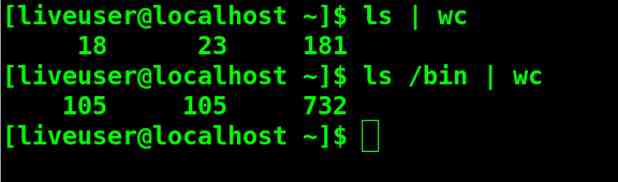
PIPES — Regular pipes & Named pipe
Regular pipe
Regular pipes are the method used to pipe the output of one program into input of another, they are created in memory through system call & do not exist on the file system.
Named pipe
Acts like a regular file but are accessed via file, called a FIFO special file. The unrelated process can access this file & communicate.
Special Files Sockets
Sockets
-
-
- Sockets are an advanced form of IPC. That allows for communication b/w 2 different processes, not only on the same machine but also on 2 different machines.
- Sockets form the basis of Network & Internet programming.
-