Filters
What are Filters in Linux
| What are filters: Basics |
| Filters: Using both standard input and standard output |
| Do all commands use the feature of standard input and standard output?
No, certainly not. |
| Directory-oriented commands like mkdir, rmdir, cd and basic file handling commands like cp, mv and rm use neither standard input and standard output.
Commands like ls, pwd, who, etc. don’t read standard input but they write to standard output. Commands like lp ( print command) that read standard input but don’t write to standard output. Commands like cat, wc, etc. that use both standard input and standard output. |
| Commands in the fourth category are called Filters, and the dual stream-handling feature makes filters powerful text manipulators. Note that most filters can also read directly from files whose names are provided as arguments. |
| Before proceeding for further detail into filters, let’s take a simple example of a filter and also we will discuss two special files. |
| Consider a file calc.txt with following contents |
| 2^32
25*50 30*25 + 15*2 |
| Now we can redirect bc standard input to come from this file and save the output in another file. |
| bc < calc.txt > result.txt
cat result.txt |
| 4294967296
1250 975 |
| bc obtained the expression from redirected standard input, processed then and sent out the results to a redirected output stream. |
| /dev/null and /dev/tty : Two special files |
| /dev/null
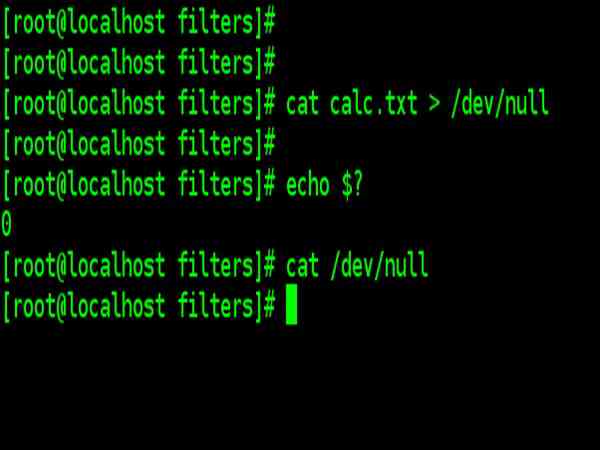
Quite often, and especially in shell programming, you’ll like to check whether a program runs successfully without seeing its output on the screen. You may not want to save this output in a file either. You have a special file that simply accepts any stream without growing in size – the file /dev/null cat calc.txt > /dev/null echo $? cat /dev/null Check the file size of /dev/null, it always remains zero. This facility is useful in redirecting error messages away from the terminal so they don’t appear on the screen. /dev/null is actually a pseudo-device because, unlike all other device files, it’s not associated with any physical device |
Basic Command Example for Filters

/dev/tty Special File
| /dev/tty |
| /dev/tty The second special file indicates one’s terminal.
But make no mistake, this is not the file that represents the standard output or standard error. Commands generally don’t write to this file, but you’ll need some statements in shell scripts to this file. Consider a scenario in which you are working on /dev/pts/1 terminal and want to send the output to another terminal/dev/pts/2 . Example : Write a command from terminal /dev/pts/1 date > /dev/pts/2 |

Some basic file manipulation command:
cmp command
| Some basic file manipulation commands | |
| cmp: Comparing two files | |
| Consider two file text1 and text 2 | |
| text1 contains: | text2 contains: |
| failure is the pillar of success | failure is the stepping stone to success |
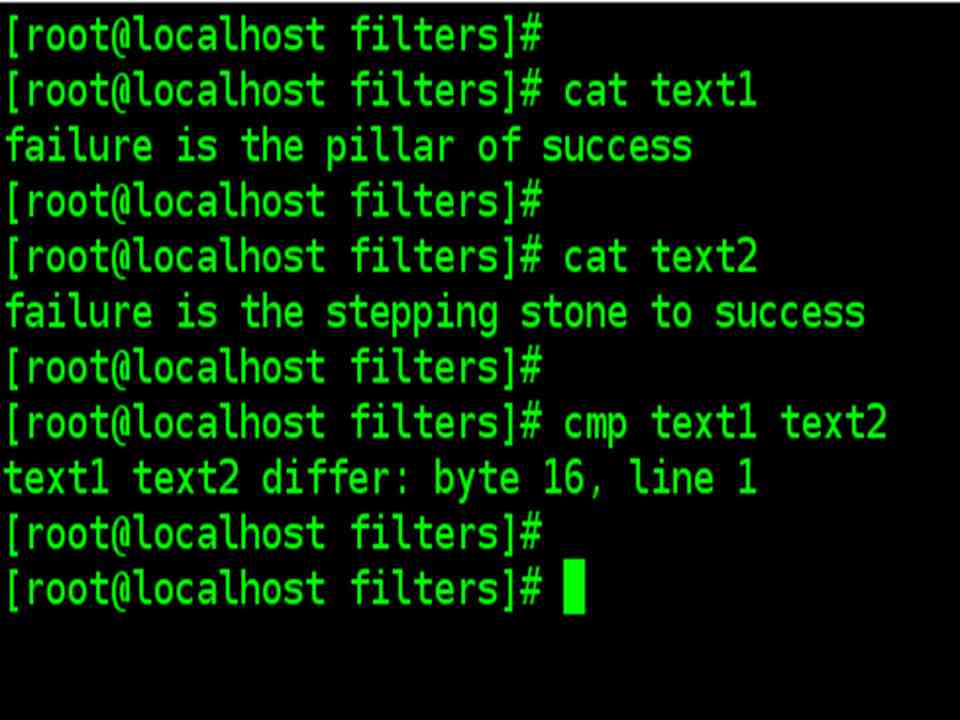
| cmp text1 text 2 | |
| The two files are compared byte by byte, and the location of the first mismatch ( in the ninth character of the first line ) is echoed to the screen. By default, cmp doesn’t bother about possible subsequent matches ut displays a detail list when used with –l option. | |
| If two files are identical, cmp displays no message, but simply returns the prompt. You can try it out with two copies of the same file. | |
comm command
| Some basic file manipulation commands | |
| comm filter command: What is common | |
| Suppose you have two lists of people and you are asked to find out names available in one and not in the other, or even those common to both. Comm is the command you need for this work. It requires two sorted files, and lists the differing entries in different columns. Let’s try it on the two files file1 and file2 . | |
| file1 contains: | file2 contains: |
| c.k. shukla
chanchal singhvi s.n. dasgupta sumit sharma |
anil aggarwal
barun sengupta c.k. shukla lalit chowdury s.n. dasgupta |
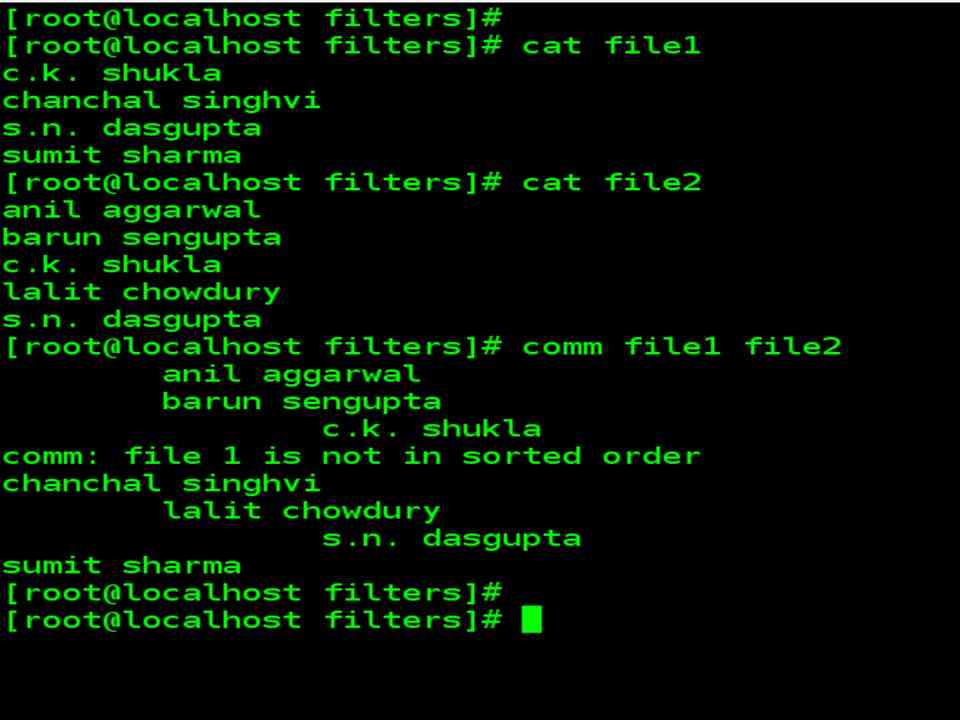
| Both files are sorted and have some differences. When you run comm, it displays a three columnar output : | |
| Above Output Explanation |
| The first column contains two unique lines to the first file, and the second column shows three lines unique to the second file. The third column displays two lines common ( hence its name) to both files. |
diff command
| Some basic file manipulation commands | |
| diff : Converting one file to other | |
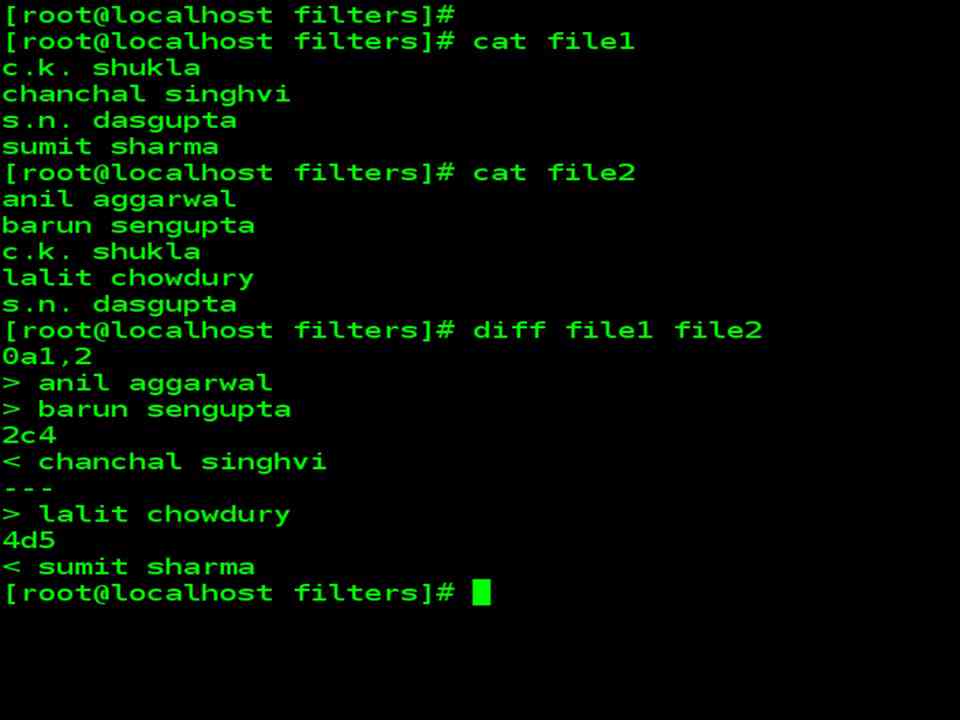
| diff command can be used to display file differences. Unlike its fellow members cmp and comm, it also tells you which lines in one file have to be changed to make the two files identical. | |
| file1 contains: | file2 contains: |
| c.k. shukla
chanchal singhvi s.n. dasgupta sumit sharma |
anil aggarwal
barun sengupta c.k. shukla lalit chowdury s.n. dasgupta |
| diff file1 file2 | |
| Refer to the output of the above command in next slide
0a1,2 means appending two lines after line 0, which becomes lines 1 and 2 in the second file. 2c4 changes line 2 which is line 4 in the second file. 4d5 deletes line 4. |
|
Simple Filters
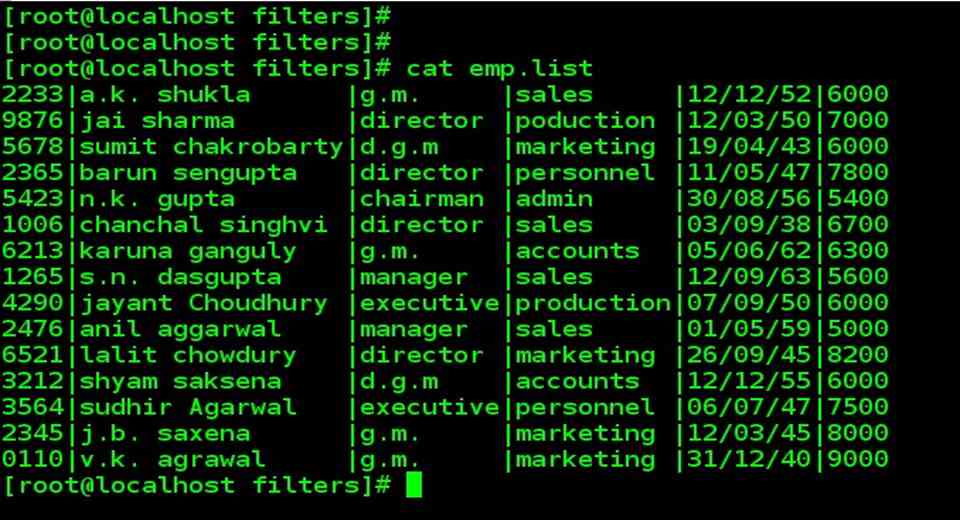
We will learn about various filters commands such as head, tail, cut, paste, sort, uniq, tr. To learn about the simple filters we will use the given file content as shown in the image.
| Consider a sample database named emp.list |
|
|
| There are 15 lines in the file, where each line has 6 fields separated from one another by the delimiter | The details of an employee are stored in one line. A person is identified by the emp-id, name, designation, department, date of birth and salary. |
head Filter command: Displaying the beginning of a file
| head: Displaying the beginning of a file |
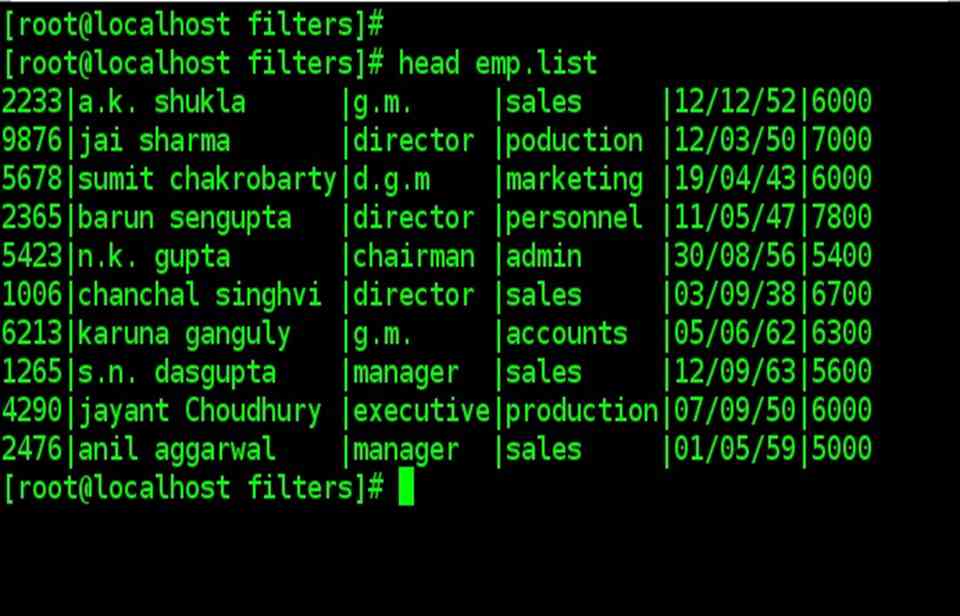
| head, when used without option, displays the first 10 lines of the files
head emp.list |
|
|
| head: Displaying the beginning of a file |
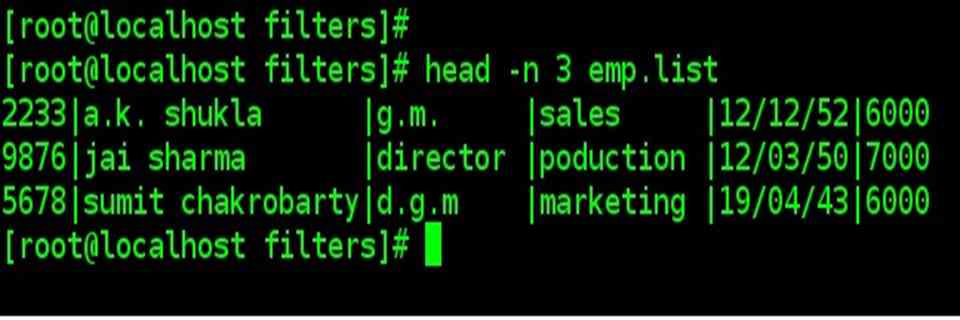
| You can use the –n option to specify a line count and display, say, the first three lines of file. |
| head –n 3 emp.list
|
tail Filter command: Displaying the end of a file
| tail, when used without option, displays the last ten lines by default. |
| tail emp.list
|
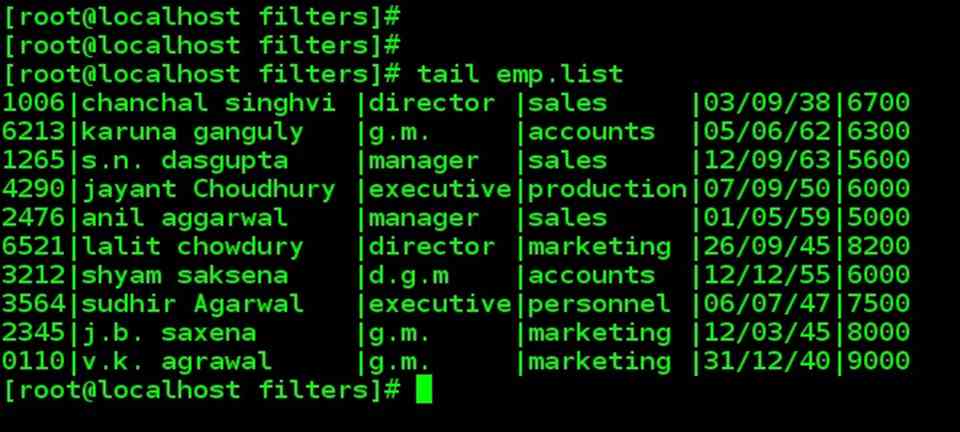
| tail: Displaying the end of a file |
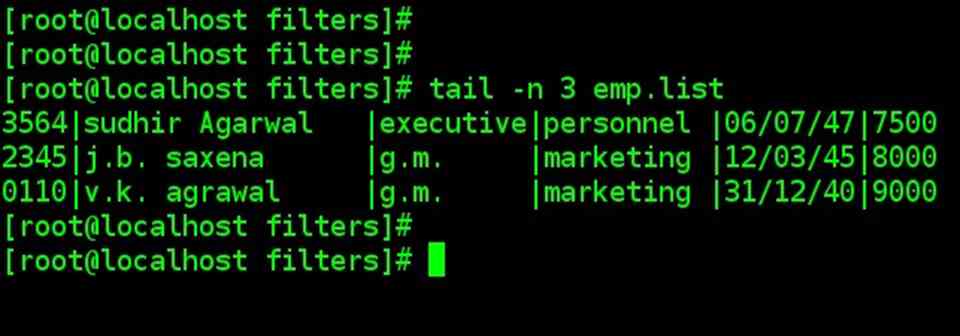
| You can use the –n option to specify a line count and display, say, the last three lines of a file |
| tail -n 3 emp.list
|
cut filter command: Slitting a file vertically
| cut: Slitting a file vertically |
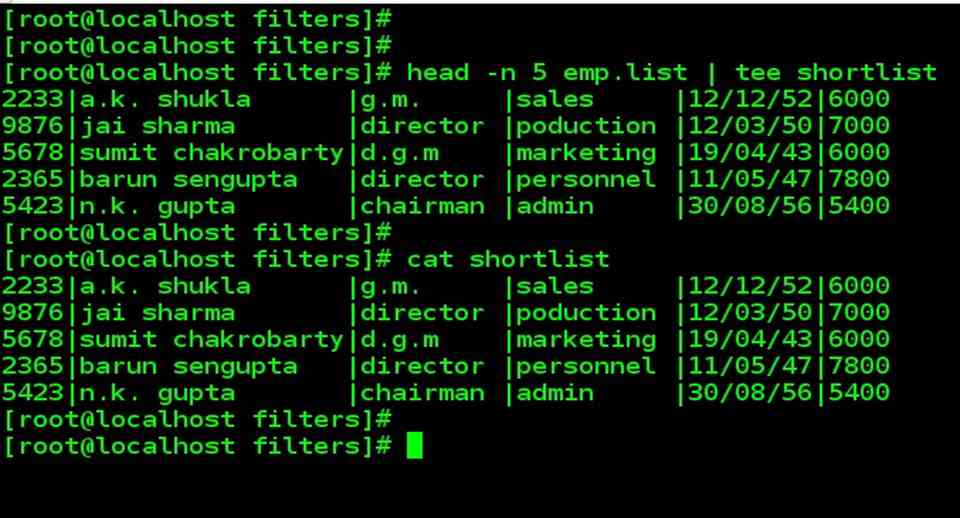
| The features of the cut and paste command will be illustrated with specific reference to the file shortlist, which stores the first five lines of emp.list. So firstly we will create a shortlist file. |
| head –n 5 emp.list | tee shortlist
|
| Note the use of tee facility that saves the output in shortlist and also displays it on the terminal. |
| cut: Cutting column with –c |
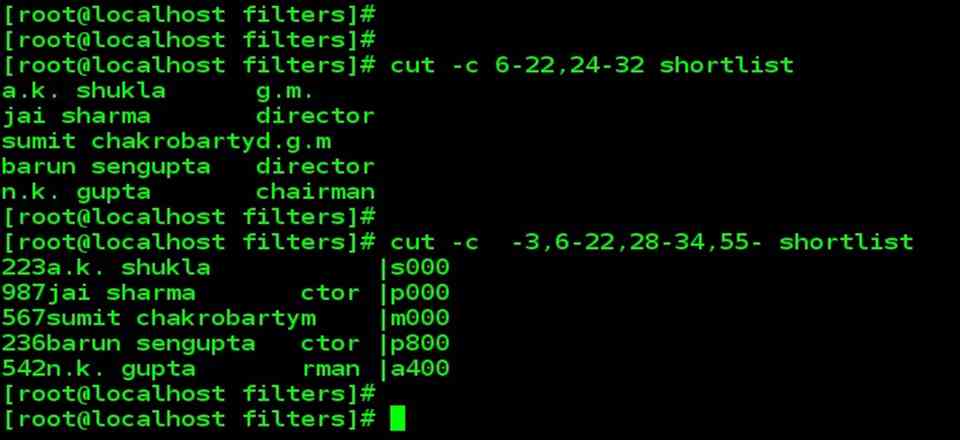
| To extract specific columns, you need to follow the –c option with a list of column numbers, delimited by a comma. Ranges can also be used with hyphen. Here’s how we extract the name and designation from shortlist.
cut –c 6-22,24-32 shortlist |
| Moreover cut uses a special form for selecting a column from the beginning and up to the end of a file.
cut –c -3,6-22,28-34,55- shortlist
|
| cut: Cutting fields -f |
| The –c option is useful for fixed-length lines. Most files like ( /etc/passwd and /etc/group ) don’t contain fixed lines. To extract useful data from these files you need to cut fields rather than columns. cut uses the default field delimiter as tab, but can also work with a different delimiter. Two options need to be used here, -d for the field delimiter and –f for the field list. |
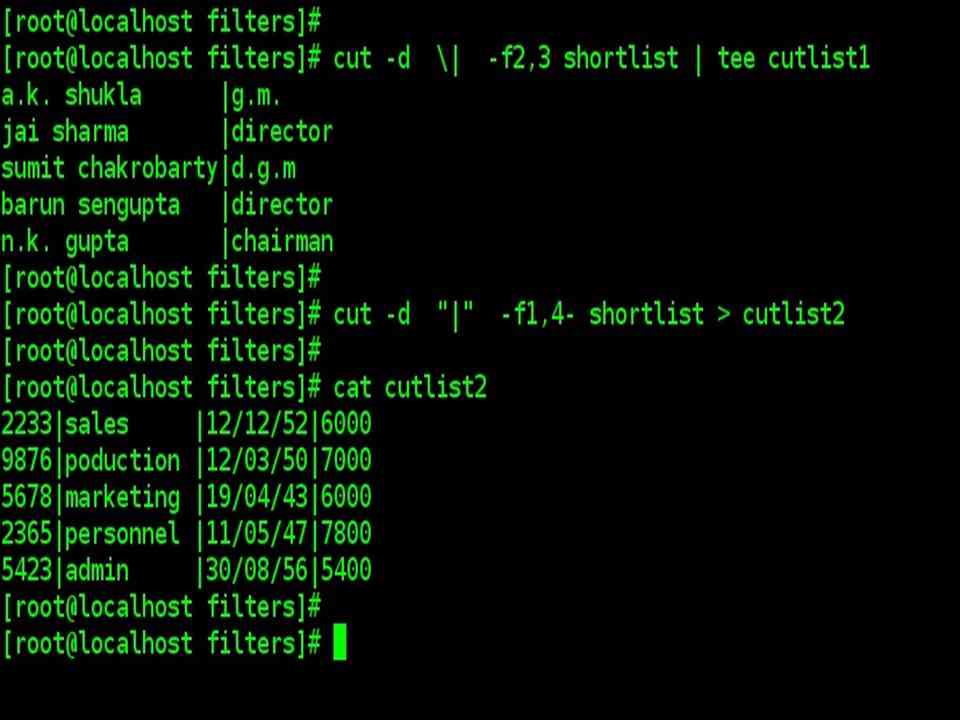
| To cut the second and third fields of our sample file. |
| cut –d \| -f2,3 shortlist | tee cutlist1 |
| The | was escaped to prevent the shell from interpreting it as the pipeline character, alternatively, it can also be quoted ( -d “|” ). |
| To cut out fields numbered 1,4,5 and 6 and save the output in cutlist2 |
| cut –d “|” -f1,4- shortlist > cutlist1 |
paste command filter: Pasting files
| paste: Pasting files |
| When you cut with cut command, it can be pasted back with paste command – but vertically rather than horizontally. We will use previous files cutlist1 and cutlist2 |
| paste cutlist1 cutlist2 |
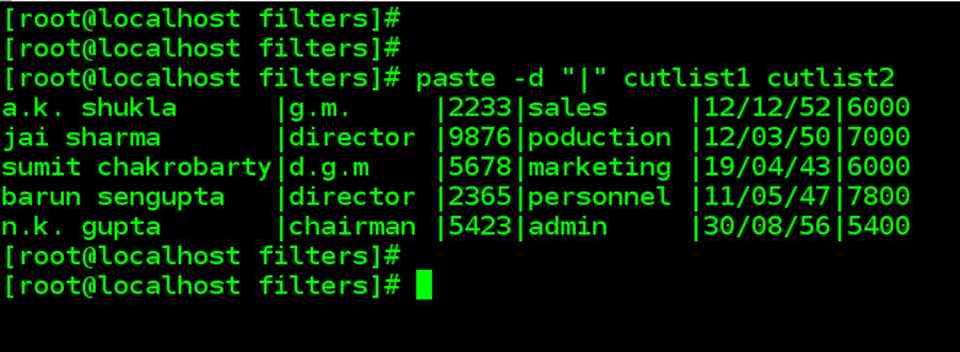
| The original contents have been restored to some extent, except that the fields have different relative locations, and pasting has taken on whitespace. Like cut, the paste also uses the tab as the default delimiter, but you can specify one or more delimiters with –d : |
| paste –d”|” cutlist1 cutlist2 |

| paste: Pasting files |
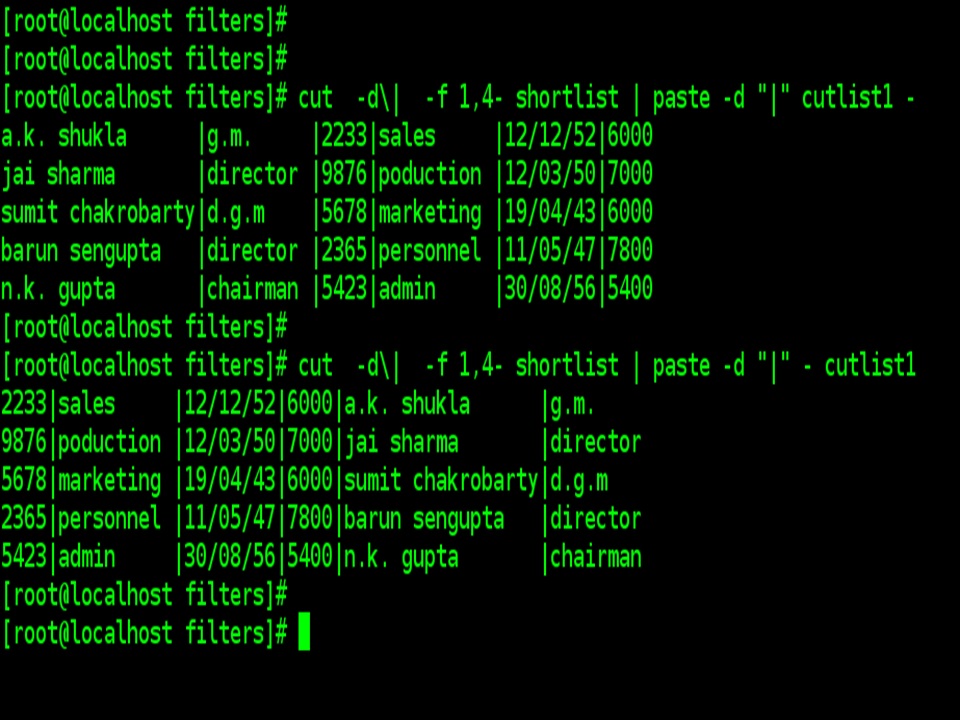
| Even though paste uses at least two files for concatenating files, the data for one file can be supplied through the standard input. If, for instance, cutlist2 doesn’t exist, you can provide the character stream by cutting out the necessary fields from shortlist file and piping the output to paste. |
| cut -d\| -f 1,4- shortlist | paste –d “|” cutlist1 – |
| You can also reverse the order by altering the location of – sign |
| cut -d\| -f 1,4- shortlist | paste –d “|” – cutlist1 |
sort command filter: Ordering a file
| sort command: Ordering a file |
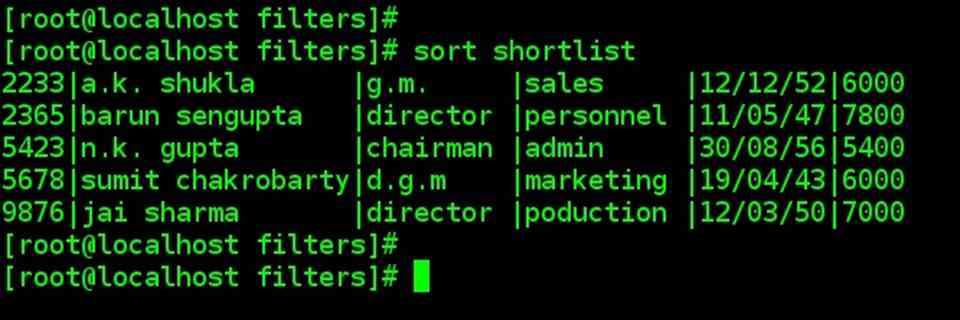
| sort command orders a file. Like cut, it identified fields and it can sort on specific fields. |
| sort shortlist |
| By default, sort reorders lines in ASCII collating sequence – whitespace first, then numerals, uppercase letters, and finally lower case letters. This default sorting sequence can be altered by using a certain option. You can also sort on one or more (fields) or use a different ordering file. |
| Unlike cut and paste, sort uses one or more contiguous spaces as the default field separator
|
| sort options |
| Unlike cut and paste, sort uses one or more contiguous spaces as the default field separator ( tab in cut and paste). We’ll use the –t option to specify the delimiter. And –k option to identify keys (the fields). |
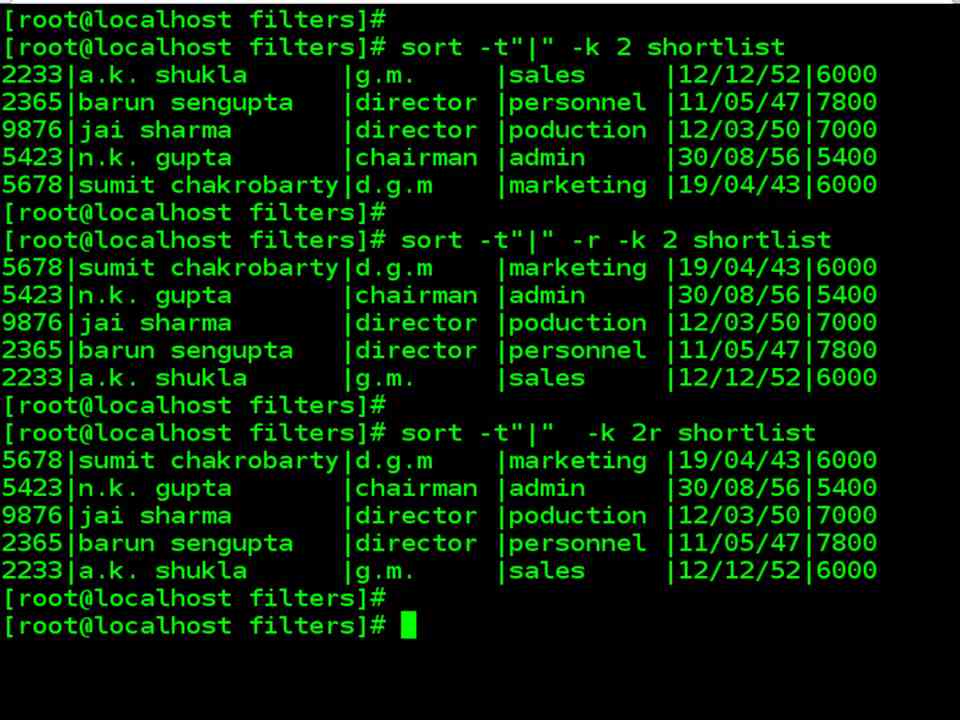
| Sorting on Primary key (-k). Let’s now use the –k option to sort on the second field(name). The option should be –k 2 |
| sort –t”|” –k 2 shortlist |
| Screenshot |
| The order can be reversed with –r (reverse) option. The following sequence reverses a previous sorting order. |
| sort –t”|” –r –k 2 shortlist |
| The above command sequence could also have been written as : |
| sort –t”|” –k 2r shortlist |
| sort options |
| Numeric sort –n
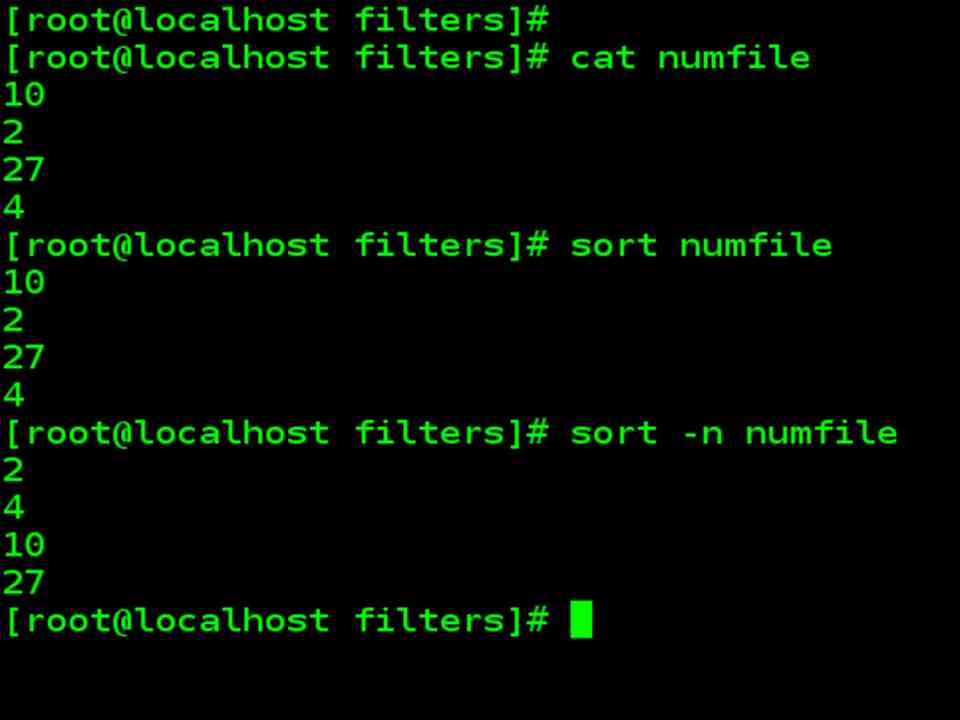
Consider a file named numfile 10 2 27 4 |
| sort numfile |
| sort –n numfile |
| Without –n option sorting is done using the ASCII sequence. With –n option they are treated as arithmetic numbers. |
| sort options |
| Removing Repeated Lines –u option
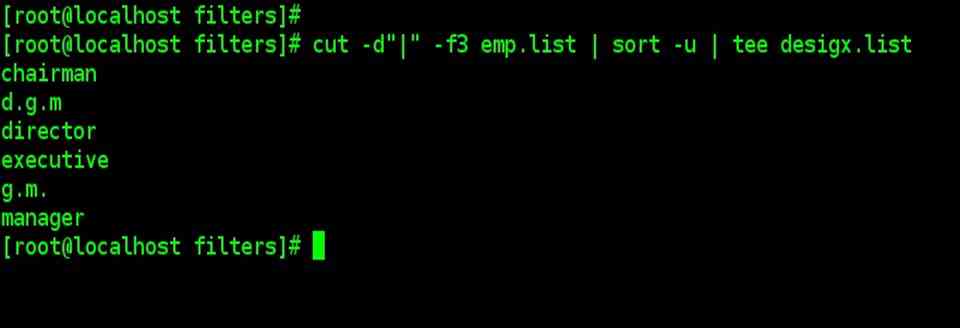
The –u ( unique) option lets you remove repeated lines from a file. If you cut out the designated field from emp.list, you can pipe it to sort to find out the unique designations that occur in a file. |
| cut –d”|” –f3 emp.list | sort –u | tee desigx.list |
|
| sort options |
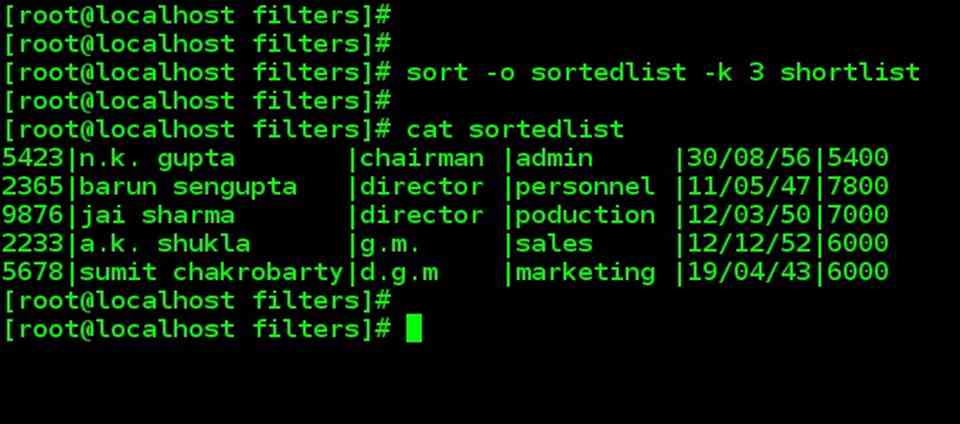
| -o option
Even though sort’s output can be redirected to a file, we can specify –o option for the output file. sort –o sortedlist –k 3 shortlist |
| -m option
When the sort is used with multiple filenames as arguments, it concatenates and sort them collectively.
|
| sort options | |
| Option | Description |
| -t char | Uses delimiter char to identify fields |
| -k n | Sorts on nth fields |
| -k m,n | Starts sort on mth field and ends sort on nth field |
| -k m.n | Starts sort on nth column of mth field |
| -u | Removes repeated lines |
| -n | Sorts numerically |
| -r | Reverses sort order |
| -f | Folds lowercase to equivalent uppercase (case-sensitive sort) |
| -m list | Merges sorted files in list |
| -c | Checks if the file is sorted |
| -o filename | Places output in the filename |
uniq command filter
| uniq command
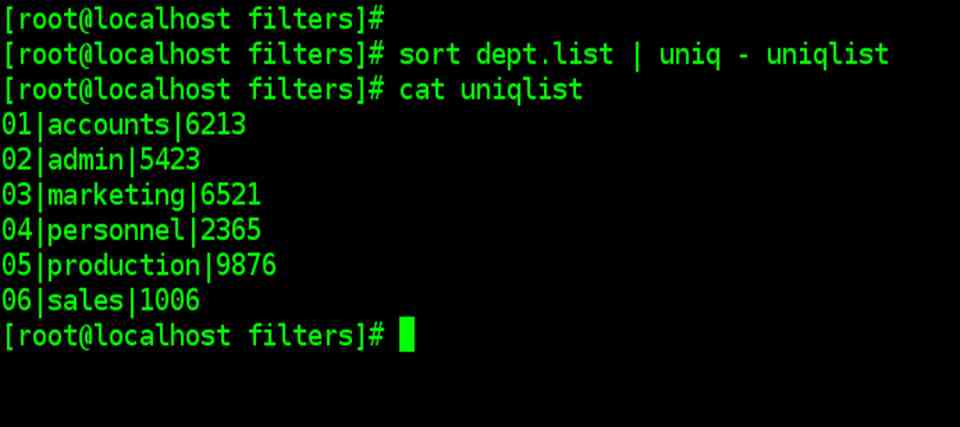
You saw how the sort command remove duplicates with –u option. Unix/Linux offers a special tool to handle these lines – the uniq command. |
| Consider a sorted file dept.list |
| uniq dept.list |
| uniq simply fetches one copy of each line and writes it to the standard output. |

| Uniq requires a sorted file as input, the general procedure is to sort a file and pipe it to uniq. |
| sort dept.list | uniq – uniqlist |
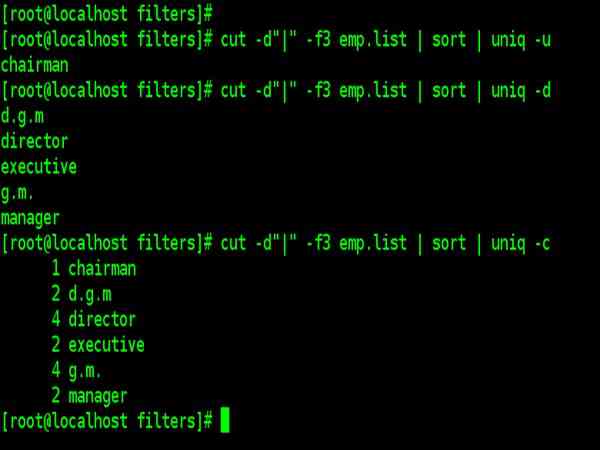
| Uniq options |
| -u lists only the lines that are unique
-d lists only the lines that are duplicates -c counts the frequency of occurrences |
| cut –d”|” –f3 emp.list | sort | uniq –u |
| cut –d”|” –f3 emp.list | sort | uniq –d |
| cut –d”|” –f3 emp.list | sort | uniq –c |
tr command filter
| Translating characters: tr |
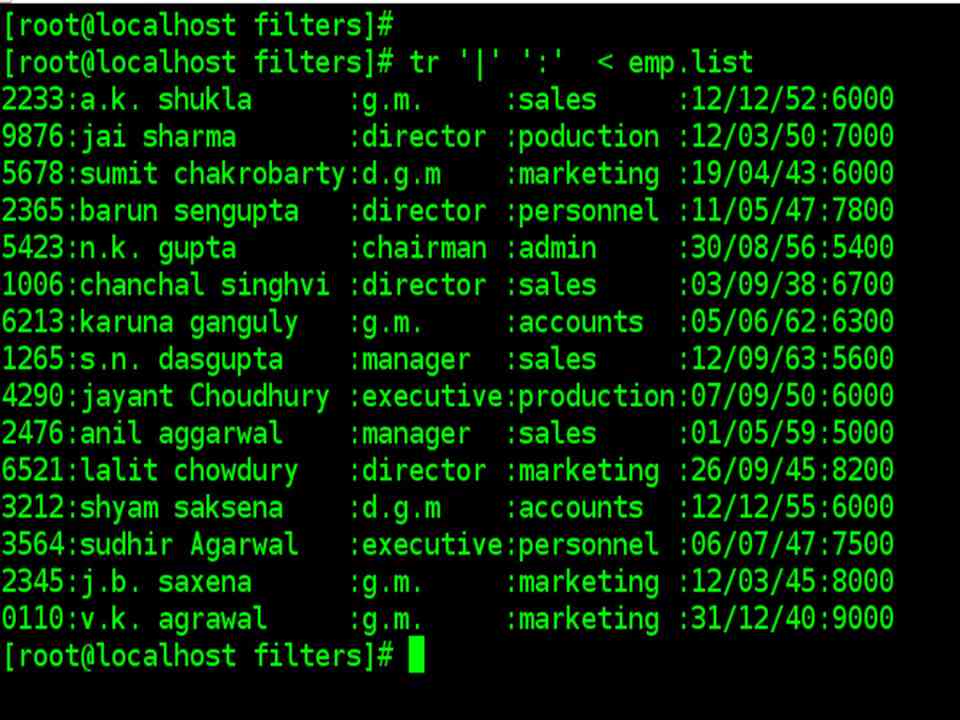
| So far, the commands have been handling either entire lines or columns. The tr (translate) filter manipulates individual characters in a line. |
| Syntax |
| tr options expression1 expression2 standard input |
| Note that tr takes input only from standard input, it doesn’t take a filename as an argument. By default, it translates each character in expression1 to its mapped counterpart in expression2. |
| tr ‘|’ ‘:’ < emp.list |
| Note that the length of the two expressions should be equal. |
| Translating characters: tr |
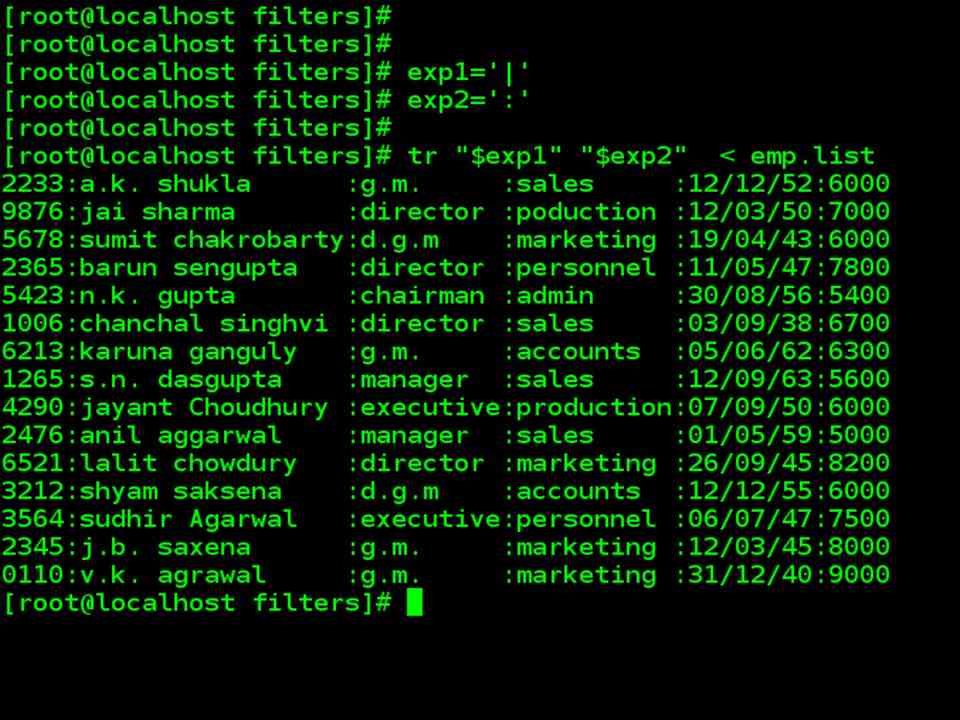
| The other way to define expression |
| exp1=‘|’
exp2=‘:’ tr “$exp1” “$exp2” < emp.list |
| Translating characters: tr |
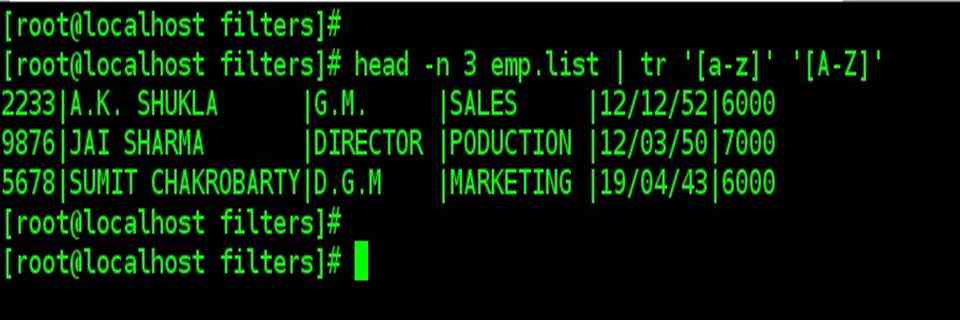
| Changing the case of text |
| head –n 3 emp.list | tr ‘[a-z]’ ‘[A-Z]’
|
| Translating characters: tr |
| Compressing multiple Consecutive characters –s |
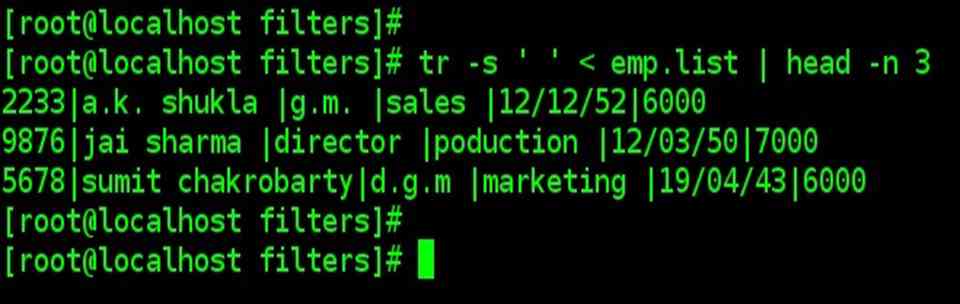
| We can eliminate all redundant spaces with the –s (squeeze) option, which squeezes multiple consecutive outputs with lines in free format. |
| tr –s ‘ ‘ < emp.list | head –n 3
|